Feature

Version Control Built for Video Teams

Naming files "final_v3_REAL_final.mp4" is not version control. RecReview tracks every revision as a proper version with its own comments, analysis, and metadata. Compare versions side by side, roll back when needed, and always know which cut is current.

Upload and Organize Every Revision

Each video in RecReview supports unlimited versions. Upload a new cut and it is automatically numbered and linked to the same project, preserving the full revision history. No more renaming files or maintaining folder hierarchies to track which export is the latest.

Previous versions remain accessible with all their comments, AI analysis results, and approval status intact. Nothing is overwritten or lost. Your team can reference any point in the editing history without digging through backup drives.

Version metadata includes upload date, uploader, file specifications, and any notes added at upload time. This creates an auditable trail of how a project evolved from rough cut to final delivery.

Side-by-Side Comparison

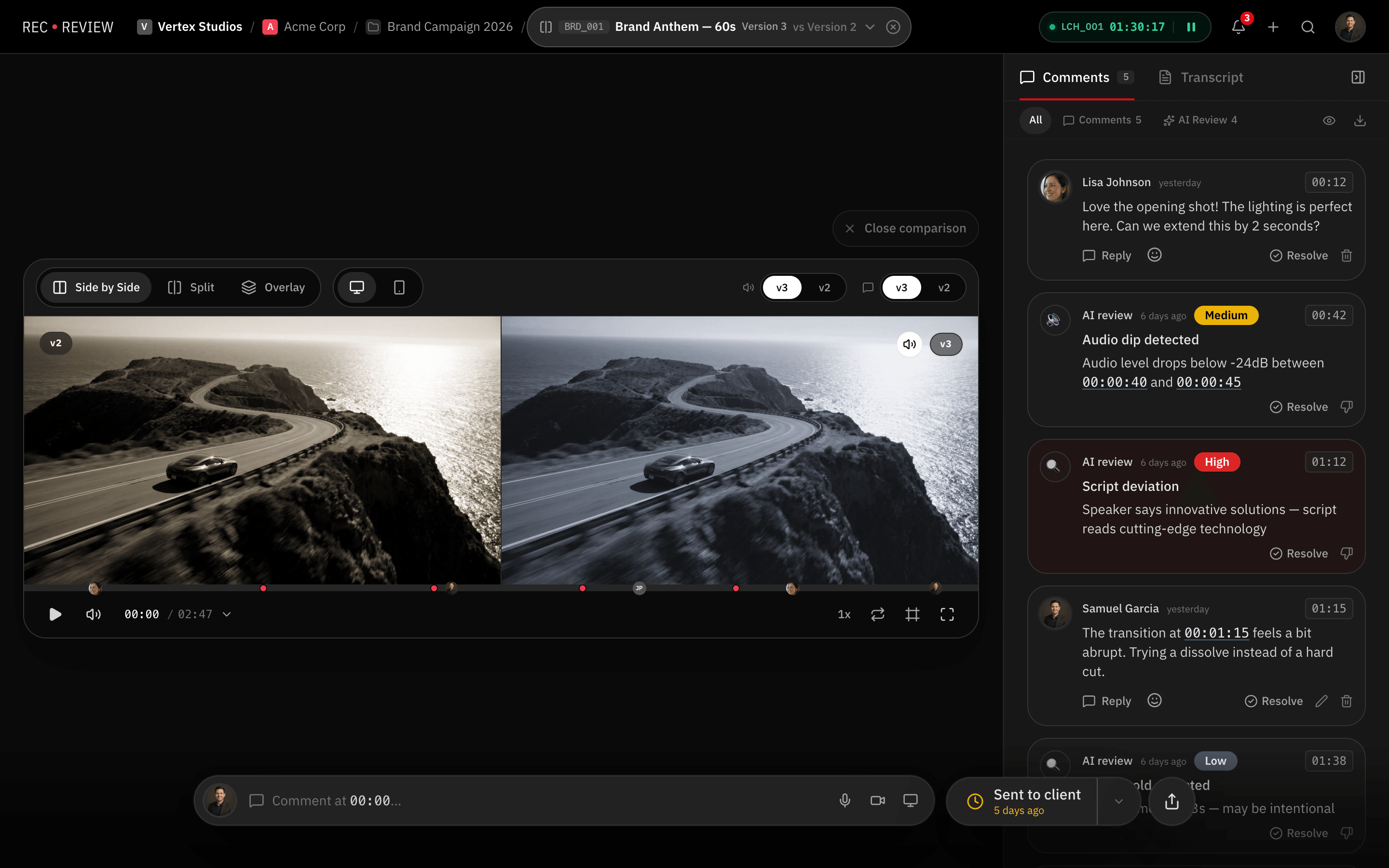
Compare any two versions in the player to see exactly what changed. This is invaluable during revision cycles when stakeholders want to verify that their feedback was incorporated without introducing new problems.

Producers use version comparison to confirm edit decisions before sending a cut to the client. Editors use it to double-check their own work against the approved previous version. It reduces the risk of accidental regressions that are common in complex multi-round revision workflows.

Comments Carry Context Across Versions

When a reviewer leaves a comment on version 2, that feedback does not vanish when version 3 is uploaded. Time-coded comments are preserved on their original version so the full conversation history is always available. Reviewers can see which notes were addressed in subsequent versions and which remain open.

This version-aware commenting eliminates the common problem of feedback getting lost between rounds. Understanding the full video review process helps teams get the most from this workflow. Producers can audit whether every note from a previous round was addressed, and clients can track how their requests were implemented across revisions.

Resolved comments from earlier versions stay collapsed but accessible. If a change request from round one resurfaces in round three, the original conversation is right there with full context.

Version History in Client Portals

Control whether clients can see the full version history or only the latest cut through the client portal. For some projects, showing the evolution builds confidence. For others, you only want the client reviewing the current version without getting distracted by earlier drafts.

Share settings are configurable per project and can be adjusted at any time. When a version is marked as the delivery candidate, clients see it prominently in their portal while older versions remain available if the option is enabled.

See it in action

Start your free trial and experience it yourself.

Start 15-Day Free Trial →

No credit card required

Frequently Asked Questions

Is there a limit on the number of versions per video?
No. You can upload as many versions as your project requires. Each version is stored independently with its own comments, analysis, and metadata. Storage counts toward your plan total.
Can I delete old versions to free up storage?
Yes. Workspace admins can delete specific versions when they are no longer needed. Deleting a version removes its video file and associated AI analysis but preserves the comment history for reference.
Do clients see all versions by default?
No. Version history visibility is controlled by the share settings. You can choose to show only the latest version or allow clients to browse the full revision history.
Explore More

Related Features

Try it free for 15 days

No credit card required. Full access to all features.

Start Free Trial →