Automate Your Video Production Workflow
Every production team has repetitive tasks that eat into creative time: updating statuses, sending notifications, assigning reviewers, setting blockers. RecReview workflow automation handles these mechanical steps so your team can focus on making great videos.
Trigger-Action Rules
Build automation rules using a simple trigger-action model. When a specific event occurs, one or more actions execute automatically. Upload a video and the task moves to "In Progress." Complete all subtasks and the task advances to "Review." Client approves and the task moves to "Delivered."
Triggers include task creation, status changes, phase transitions, video uploads, comment additions, review status changes, timer events, subtask completion, and blocker changes. Actions include setting status, setting phase, assigning blockers, creating subtasks, sending notifications, sending emails, and triggering webhooks.
Each rule can have conditions that narrow when it fires. A rule might only apply to tasks in a specific project, or only when the status changes from a particular value. This precision prevents automations from misfiring on tasks they should not affect.
Workflow Presets to Get Started Fast
Not sure how to structure your automations? Start with one of the built-in presets. The Video Production preset creates a complete workflow with subtasks for scripting, recording, editing, and multi-round reviews. The Agency preset simplifies things for briefing-to-delivery cycles within your project management board. The Simple preset covers just timer tracking and review automations.
Presets create a starting point that you can customize. Add rules, remove ones that do not fit, or adjust conditions to match your team. You are never locked into a preset configuration.
Blocker Management
Blockers indicate that a task cannot progress until a specific condition is met: client review pending, internal review required, assets missing. RecReview makes blockers a first-class concept that integrates with automations and the project board.
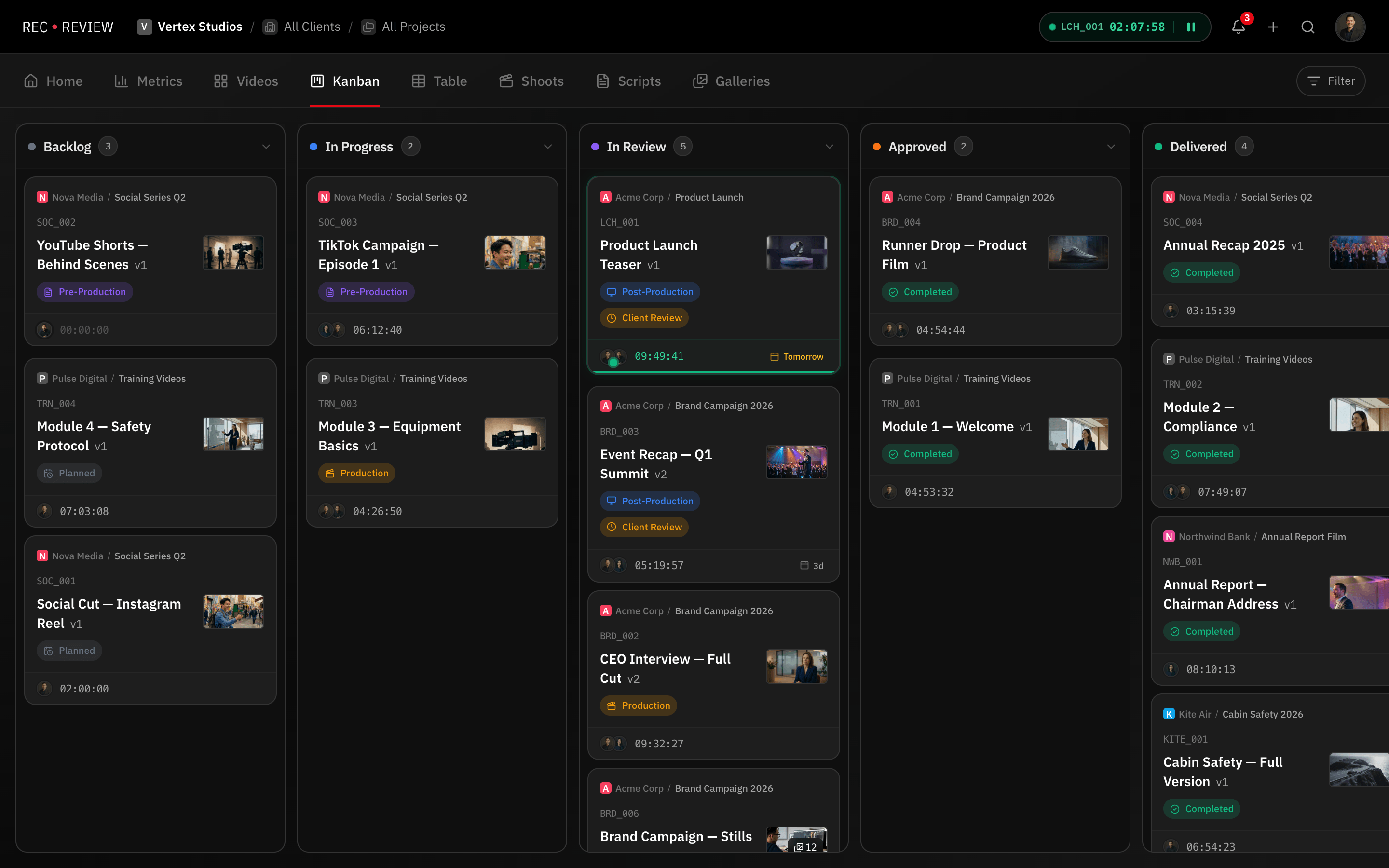
When a blocker is set, the task is visually flagged on the kanban board. Automations can set blockers automatically when a task enters the review phase, and remove them when quality checks pass and a reviewer approves. This prevents tasks from advancing prematurely and keeps the workflow honest.
Blockers combined with notifications ensure the right people know when their action is needed. When a client review blocker is set, the client receives a notification. When the blocker is removed upon approval, the editor gets the green light to proceed.
Notifications and External Triggers
Automations can send in-app notifications, email notifications, or trigger outgoing webhooks. This flexibility lets you keep your team informed through their preferred channels and integrate with external tools.
Webhook actions are particularly powerful for teams using RecReview alongside other production tools. Trigger a webhook when a video is approved and your project management system updates automatically. Trigger another when a delivery is sent and your invoicing system creates a draft invoice.
See it in action
Start your free trial and experience it yourself.
Start 15-Day Free Trial →No credit card required
Frequently Asked Questions
Do I need to code to set up automations?
Can automations trigger other automations?
What happens if an automation creates a conflict?
Can I disable automations temporarily?
Related Features
Project Management Designed for Video Production
Track video projects from brief to delivery with kanban boards, phases, custom statuses, subtasks, and deadline…
Streamline Reviews From First Cut to Final Approval
Streamline your review and approval process. Collect feedback, manage revision rounds, track approval status, and close…
Automated Video QC That Never Misses a Spec
Automate video quality control with configurable validation rules. Check audio levels, resolution, frame rate,…