The download appears once the version is approved. Some studios also release it earlier — that is their choice, made per client.
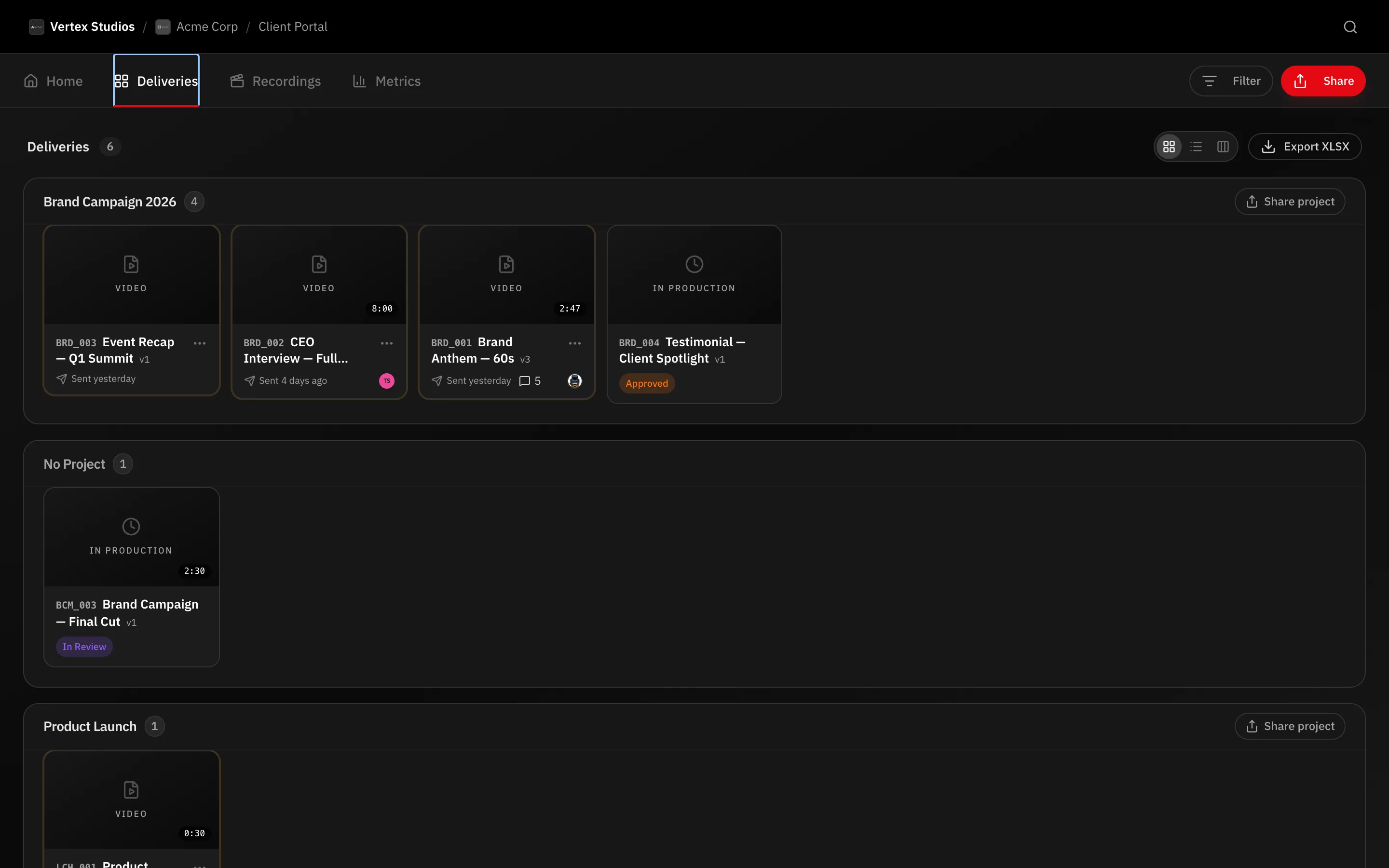
Two places to find it
- Right after approving. The confirmation carries Download final video.
- From the portal. Open Deliveries, click the … on the delivery and choose Download.
The approval email also carries a download link, so you rarely need to go looking.
What the panel offers
Clicking download opens a panel showing the file’s Size, Duration, Resolution and Frame rate, with the file name ready to edit. Three tabs sit along the top:
- Video — the file itself. On the review page, Download in another resolution offers a lighter copy.
- Thumbnail — a still from the video. Pick one of the suggested frames, or set your own timecode.
- Transcript — appears only when the video has been transcribed. Choose SubRip subtitle, WebVTT subtitle, Plain text or Structured data.
Downloading before approval
Where the studio allows it, the panel warns you that this version is not approved yet. The download works, and the team is told it happened — so nobody circulates a cut believing it was signed off.
Note: Each version keeps its own file. Open the version you want first; the download always gives you the cut you are looking at, not automatically the newest one.
Photo galleries
In a gallery, Download selected takes just the photos you favorited and Download takes what the gallery allows. Both appear only when the studio enabled downloads for you.
What’s next
See the emails you receive for the delivery and approval links that land in your inbox.