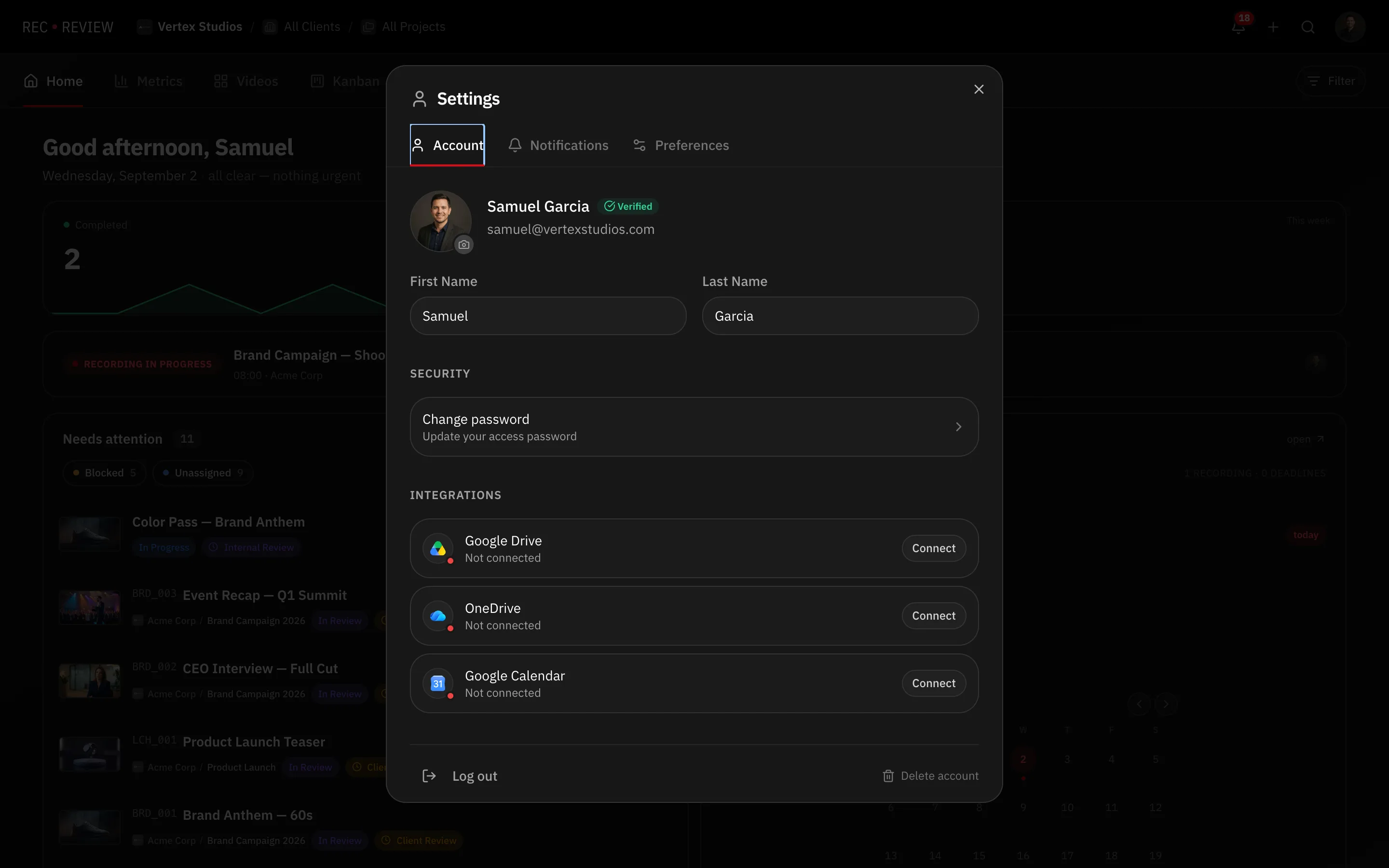
All your integrations sit on one screen. Come here to check what is connected, connect something new, or cut RecReview’s access to an account.
Open the list
- Click your avatar at the top right and choose Settings.
- Open the Account tab.
- Scroll to Integrations.
You see one row each for Google Drive, OneDrive and Google Calendar, with a status and a button.
What each status means
- Checking… — RecReview is still asking Google or Microsoft.
- Not connected — you have not connected it. The button says Connect.
- Connected — you are connected, and the button says Disconnect. Google Calendar shows Connected — events and Meet links.
An integration missing from the list is not available on your account. Nothing is broken.
The whole section only appears if you belong to a workspace.
Three disconnect buttons, and what each one does
This is the part that trips people up:
- Settings → Account → Integrations → Disconnect — the real one. It cuts RecReview’s access to that account.
- Workspace Settings → Integrations → the OneDrive card’s Disconnect — the same thing, from the workspace screen.
- Workspace Settings → Integrations → the Google Calendar disconnect — not the same thing. It only clears which calendar this workspace writes plan events to. Your Google connection stays.
Note: Google Drive has no disconnect button in Workspace Settings — only a Connected status. Disconnect it from your Account tab.
Sign-in buttons are not integrations
The same Account tab shows how you sign in — Google Login or Apple Login, for example. Those are not integrations: you cannot disconnect them from inside RecReview. Each one links out to Google’s, Microsoft’s or Apple’s own security page.
See Sign-in methods for what you can change there.
What happens after you disconnect
Everything already attached keeps working:
- Scripts stay on their tasks and keep pointing at the original files.
- Calendar events stay on the calendar. RecReview stops updating them.
- Reconnect later and you can browse and create again, with nothing to re-link.