Connect Google Drive to attach a Doc to a video task without downloading and re-uploading it. Your admin can also set a template so a new script is one click away.
Connect your account
- Click your avatar at the top right and choose Settings.
- Open the Account tab and scroll to Integrations.
- On the Google Drive row, click Connect.
- Authorise the access on the Google screen that opens.
You come back to RecReview and the row reads Connected.
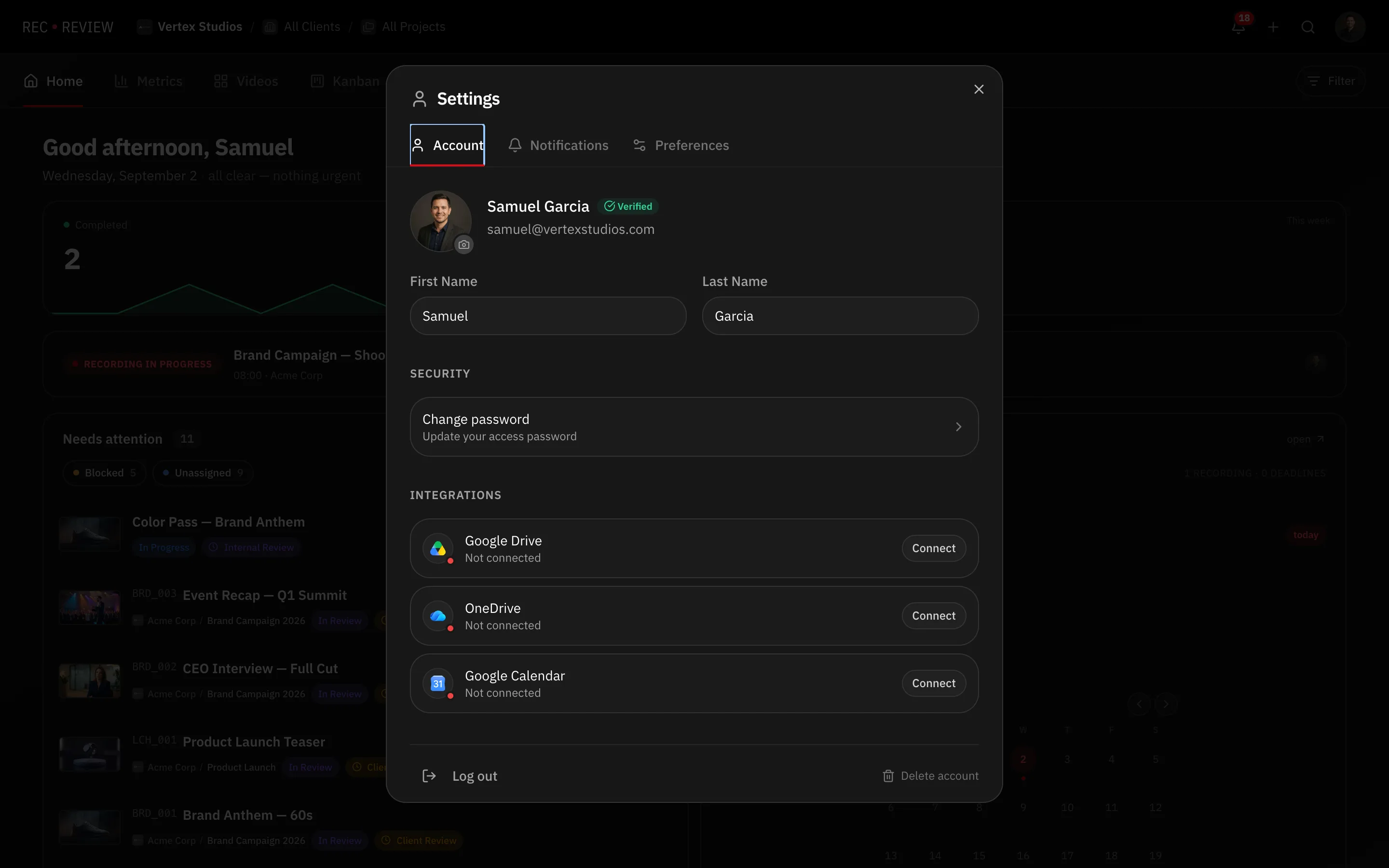
The connection is yours, not the workspace’s. Each teammate connects their own Drive.
Set up the workspace template
Only workspace admins can do this, and only after connecting their own Drive.
- Click your avatar and choose Workspace Settings, then open the Integrations tab.
- Under Script template (Google Doc), click Select document and pick the Doc you start from.
- Under Destination folder, click Choose folder to say where new scripts are saved. My Drive (root) works too.
- Set a File name pattern. Click the chips to build it —
{code},{title},{client},{project},{date}. A preview shows the result as you go.
Inside the template document, these placeholders are filled in when a script is created: {{cliente}}, {{projeto}}, {{codigo}}, {{titulo}}, {{duracao}} and {{data}}.
Important: The template is copied every time a script is created. Everyone who creates scripts needs to be able to open that document, or the copy fails for them.
Use it on a task
Open a video task and use the script actions:
- Choose from Drive — attach a file you already have.
- Create from template — make a new Doc from the workspace template, named and filed by your pattern.
- Upload file to Drive — push a local file into the workspace scripts folder and attach it.
- New version (Drive) — attach a newer file and keep the version history.
Removing a script from a task only detaches it. The original file in Google Drive will not be affected.
Disconnect
Go back to Settings → Account → Integrations and click Disconnect on the Google Drive row. RecReview’s access ends. Scripts already attached keep pointing at the same Drive files.