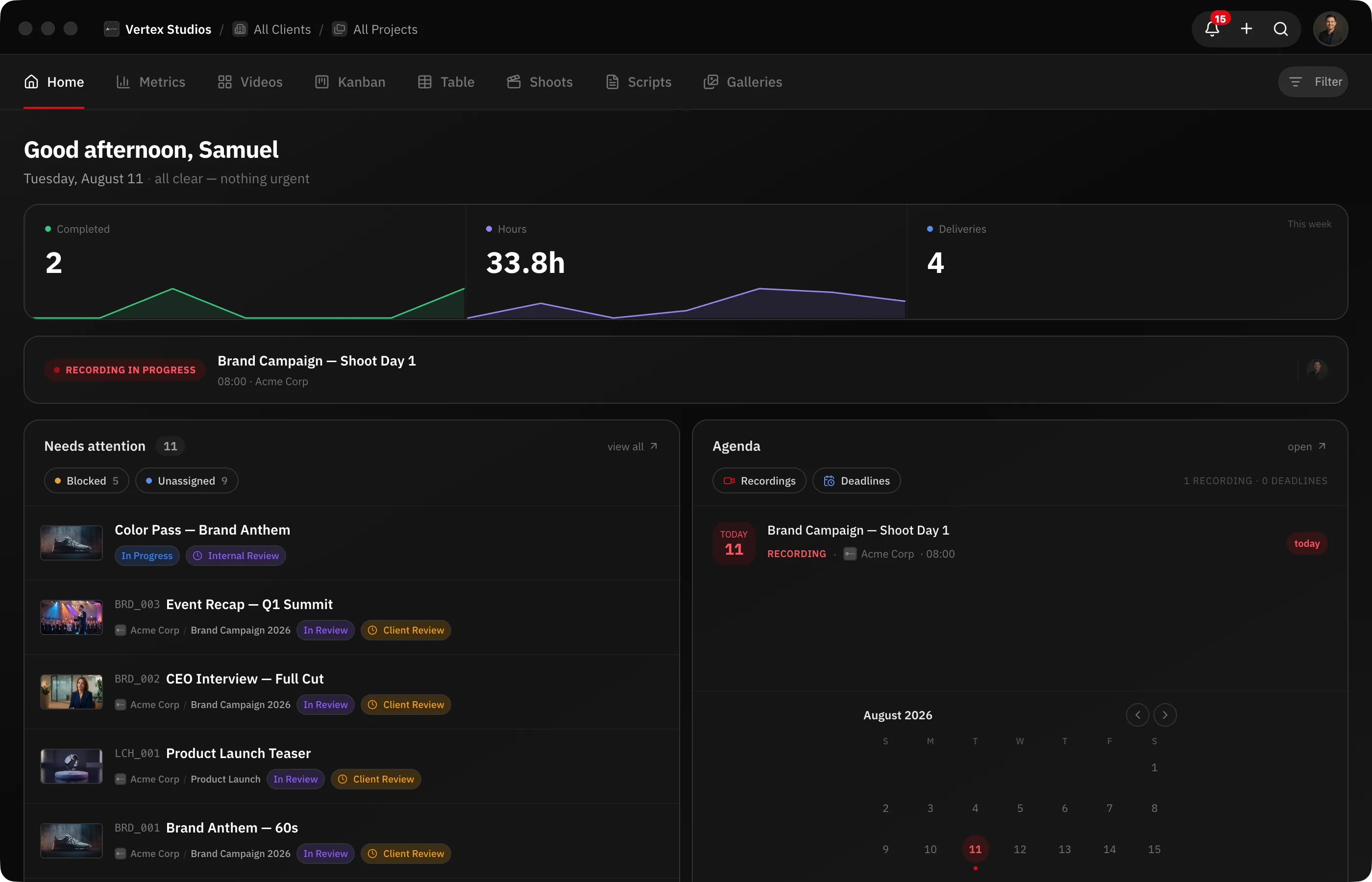
The Mac app is the same RecReview, in a native window. Install it if you want your finished exports to upload on their own, real macOS notifications, and more than one window open at a time.
Download and install
- Open the RecReview page for the Mac app.
- Click Download for Mac.
- Open the downloaded file and drag RecReview into your Applications folder.
- Open RecReview from Applications.
The same download works on any Mac. From then on the app updates itself.
Sign in
Click sign in. Your normal browser opens, you confirm there, and you land back in the app already signed in. Google sign-in and passkeys work exactly as they do on the web.
If you had signed out to switch accounts, the browser asks which account to use.
Set up a watch folder
This is why most people install the app: point it at your export folder and finished renders upload themselves.
- Click your avatar, choose Settings, and open the Watch Folders tab. It only exists in the Mac app.
- Click Add folder and pick your export destination — your Media Encoder output folder, for example.
- Choose the workspace, and optionally a client and a project.
- Pick a Versioning mode: Auto — stack versions by filename or Always create a new task.
- Leave Run AI review after upload on to start the review by itself.
The folder is now watched. Each new file appears under Recent activity as it uploads.
Name a file with a video code — ABC_001 — and it is attached to that task as a new version.
Note: The app waits for the export to finish before it uploads. A half-written render is skipped as Incomplete export — skipped instead of arriving broken.
Turn on Open at login so your folders stay watched after a restart.
Notifications, windows and offline
- Notifications are real macOS notifications with a count on the Dock icon. They fire only when the RecReview window is not in front. See Notifications aren’t showing.
- Windows: ⌘N opens another full window. ⌘-click a link inside the app to open it in its own window. Closing the last window only hides it — reopen it from the Dock.
- Offline: if the connection drops, the app shows an offline screen and retries by itself. You do not need to quit.
If a banner says your app is out of date, quit with ⌘Q and reopen. If the banner comes back, click Download the new version.