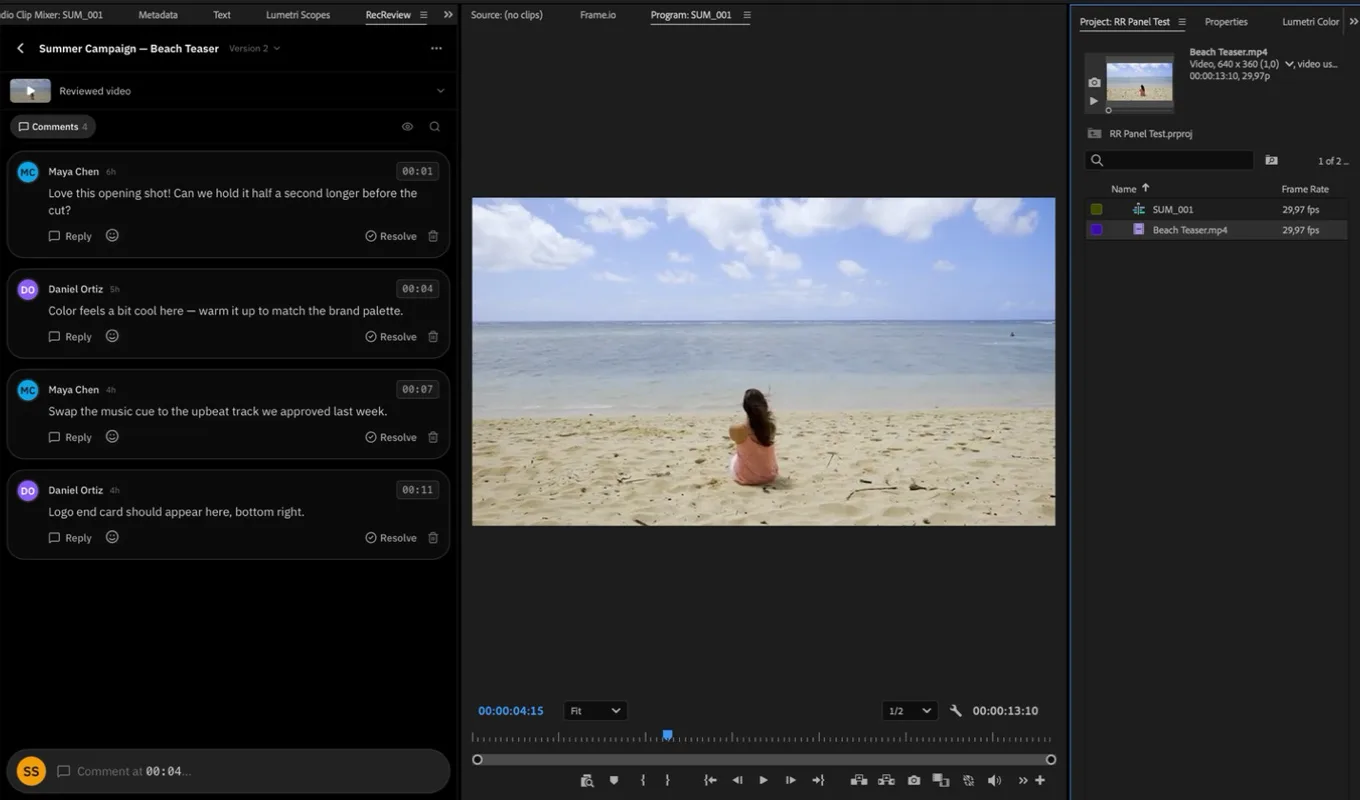
The panel brings the review into Adobe Premiere. Your client’s comments sit next to the timeline: click one and the playhead jumps straight to its frame.
You need Adobe Premiere 25.6 or newer and a RecReview account on the Pro or Studio plan (the free trial includes it).
Download and install
- In RecReview, click your avatar, choose Settings and open the Devices tab.
- Under Premiere panel, click Download.
- Double-click the downloaded file. Creative Cloud asks you to confirm: click Install.
- In Premiere, open Window → UXP Plugins → RecReview. If Premiere was already open, quit and reopen it.
Nothing happened after double-clicking? The confirmation shows up inside the Creative Cloud app, which sometimes opens behind your other windows. Click the Creative Cloud icon in the menu bar, open the app and confirm the install there.
The panel behaves like any other Premiere panel: drag its tab wherever you like in your workspace.
Connect your account
- In the panel, click Connect.
- The approval opens in the RecReview app for Mac or, without it, in your browser. Check that the code matches the one in the panel and approve.
That’s it: the panel stays connected and won’t ask you to sign in again. Every connected Premiere shows up under Settings → Devices, and Revoke disconnects it immediately.
Open a video
The panel lists the videos in progress, organized like the Home: your tasks (or the overdue ones, if you manage the team) at the top and the rest by workflow column. Switch workspace, client and project at the top; search finds any video, including finished ones.
The panel tries to find the active sequence’s video on its own and shows it under Detected from sequence. It looks for the video code (like ABC_001) in the sequence name; if there is none, in the files and names of the sequence’s clips (the previous version’s export usually carries the code) and in the project name.
Once you open a video, the sequence is linked to it: coming back to that sequence reopens the same review, even without a code in its name.
To switch videos, use the back arrow at the top of the panel. To see another version, click Version next to the title.
Review without leaving Premiere
- Click a comment and the sequence playhead jumps to its exact frame.
- Reply, react and resolve right there, just like the review in the browser.
- Attachments on comments open in the panel; Download saves the file to your Mac.
- Comment at the playhead: the comment box uses the current position of your timeline.
- Markers (the ⋯ menu) imports every comment as sequence markers in a single step you can undo.
- Hide player (the camera button at the top) leaves just the comment list. Premiere’s program monitor already shows the picture.
Tip: if the reviewed video was exported from an in point other than the start of the sequence, set the Time offset in Panel settings so comments land on the right frame.
Send the next version
With the RecReview app for Mac installed:
- In the panel’s ⋯ menu, click Send new version.
- The first time, the Mac app asks whether it can upload Premiere exports on its own. Confirm.
- The panel exports the sequence and the Mac app uploads the file as the next version of the same video.
Follow the upload in the Mac app, under Settings → Watch folders.