Connect Google Calendar and your production plans become events on a calendar your crew already watches. RecReview can also create a Google Meet link for a shoot.
Connect your account
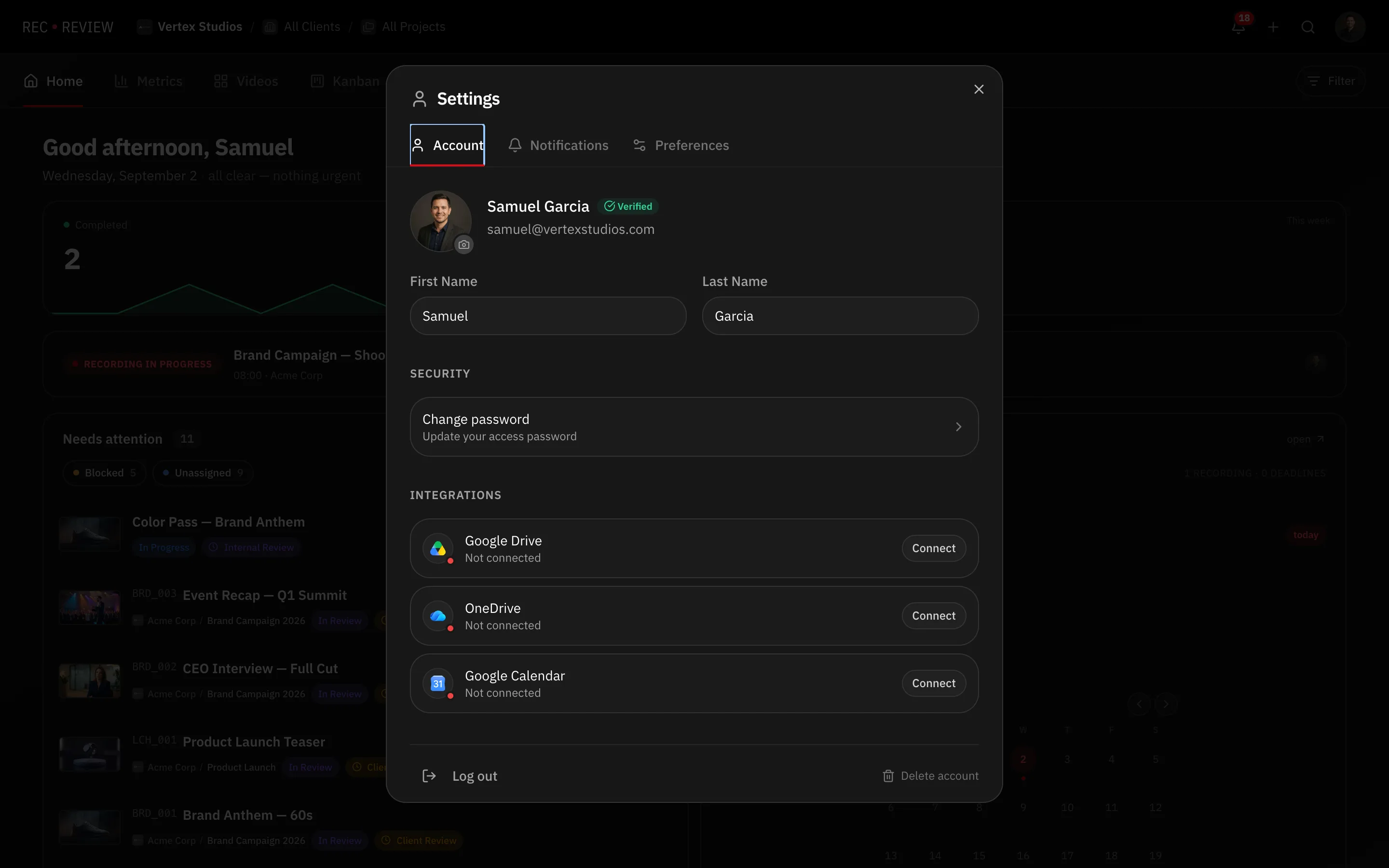
- Click your avatar at the top right and choose Settings.
- Open the Account tab and scroll to Integrations.
- On the Google Calendar row, click Connect.
- Authorise the access on the Google screen that opens.
The row then reads Connected — events and Meet links.
Choose which calendar receives plan events
Workspace admins only, and you need edit rights on the calendar you pick — events are written with your connected account.
- Click your avatar and choose Workspace Settings, then open the Integrations tab.
- In the Google Calendar section, pick a calendar from the list. The primary one is marked.
The choice saves on its own.
Warning: Disconnecting the calendar in Workspace Settings only clears the workspace’s chosen calendar. It does not revoke your Google connection — that is the Disconnect button in your Account tab.
See Google events inside RecReview
The dashboard calendar can show your Google events next to RecReview’s own dates. Turn them on and off with Show/hide Google Calendar events.
A Google event can become a plan on the spot — see Sync a plan with Google Calendar.
If it asks you to connect again
When RecReview cannot list your calendars, it treats the account as not connected and shows Connect again. Click Connect and authorise once more. There is nothing to undo first.
Disconnect
Go to Settings → Account → Integrations and click Disconnect on the Google Calendar row. RecReview’s access ends. Events already written to Google stay where they are — RecReview simply stops updating them.