A script attaches to the video task, not to the plan or the block. The block shows whatever that task’s current script is. Change the script once and the plan, the teleprompter and the client’s view all follow.
Attach a script
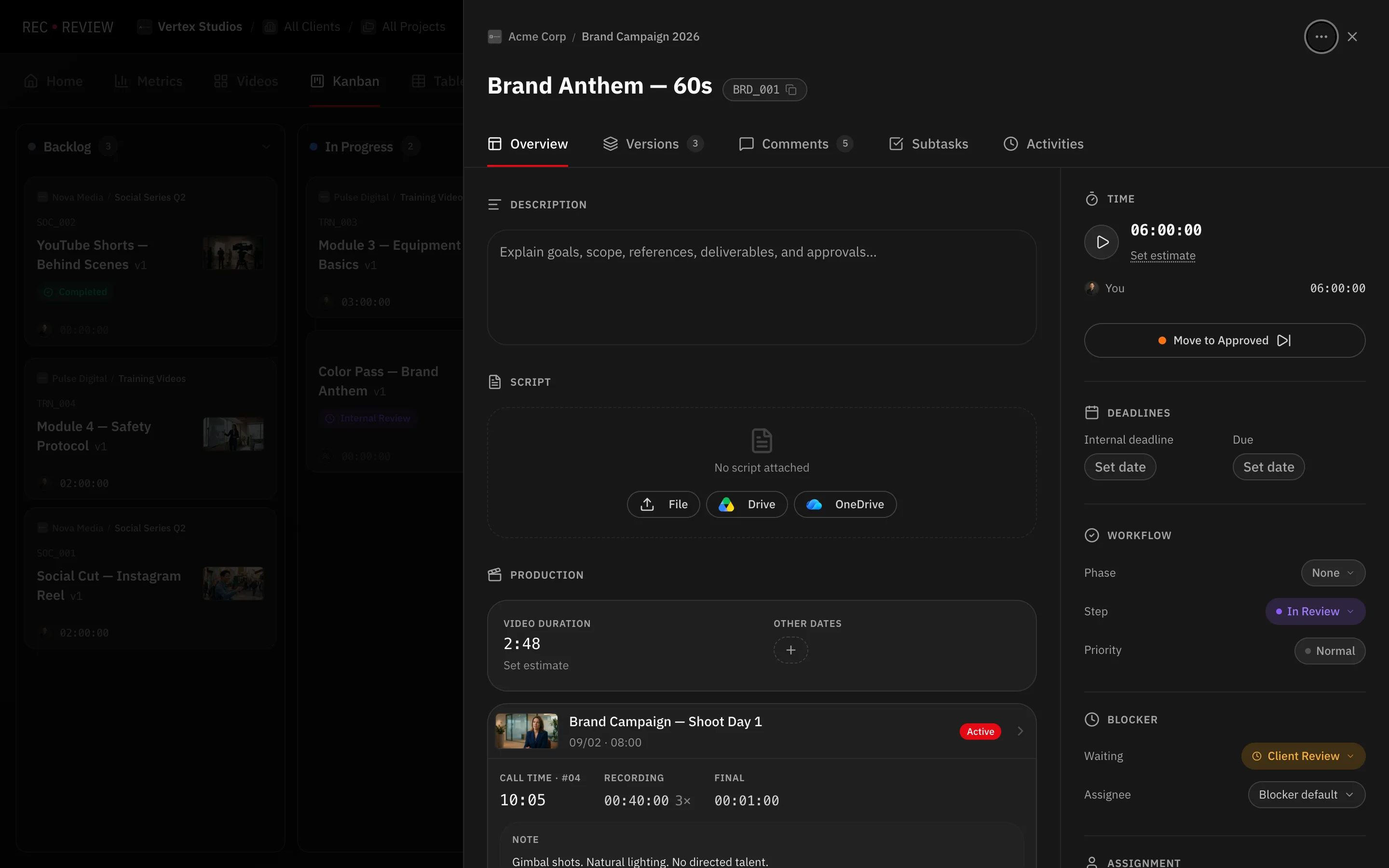
- Open the task, from the plan’s Script column or from the task panel.
- In the Script section, pick where the file comes from:
- File — upload from your computer. Scripts accept PDF, DOC(X), PPT(X), TXT or RTF.
- Drive — link an existing file in Google Drive.
- OneDrive — link a file in OneDrive or SharePoint, including one a client shared with you.
When your workspace has a Google Docs script template, Create from template also appears. It copies the template into a new Doc, named and filed automatically.
To attach the same script to many tasks, apply it to the whole selection at once instead of repeating yourself row by row.
Versions
Every attach or upload creates a new version rather than overwriting. Use New version (file), New version (Drive) or New version (OneDrive) when the writer sends a revision, and View history to see what came before. Detaching a script never touches the file at its source.
How links open
A script opens in the right app for what it is: Docs and Word files in the Google Docs editor, presentations in Slides, spreadsheets in Sheets, everything else in the Drive viewer. A .docx therefore opens ready to read instead of downloading, and it is never converted into a Google Doc along the way.
Estimate the duration from the script
Once a script is attached, the plan can work out how long the finished video will be.
- In the plan row, use the button next to the duration to read the script.
- RecReview counts the words and estimates the reading time.
- The Video Duration fills in, and the Recording Duration follows from the plan’s pace.
If several rows share the same script or the same length, set the first one and use Apply script below or Apply duration below.
Note: A guest opening the shared plan can open the script too — but only the current version, never the older ones.
What the teleprompter does with it
In Production Mode, a video block with a script offers Extract automatically, which pulls the readable text out of the file. It works with Google Docs and Slides as well as Word, PowerPoint, PDF and RTF. If the result needs cleaning up, edit it in place before you roll.
What’s next
Run the day from the prompter — see Set up the teleprompter.