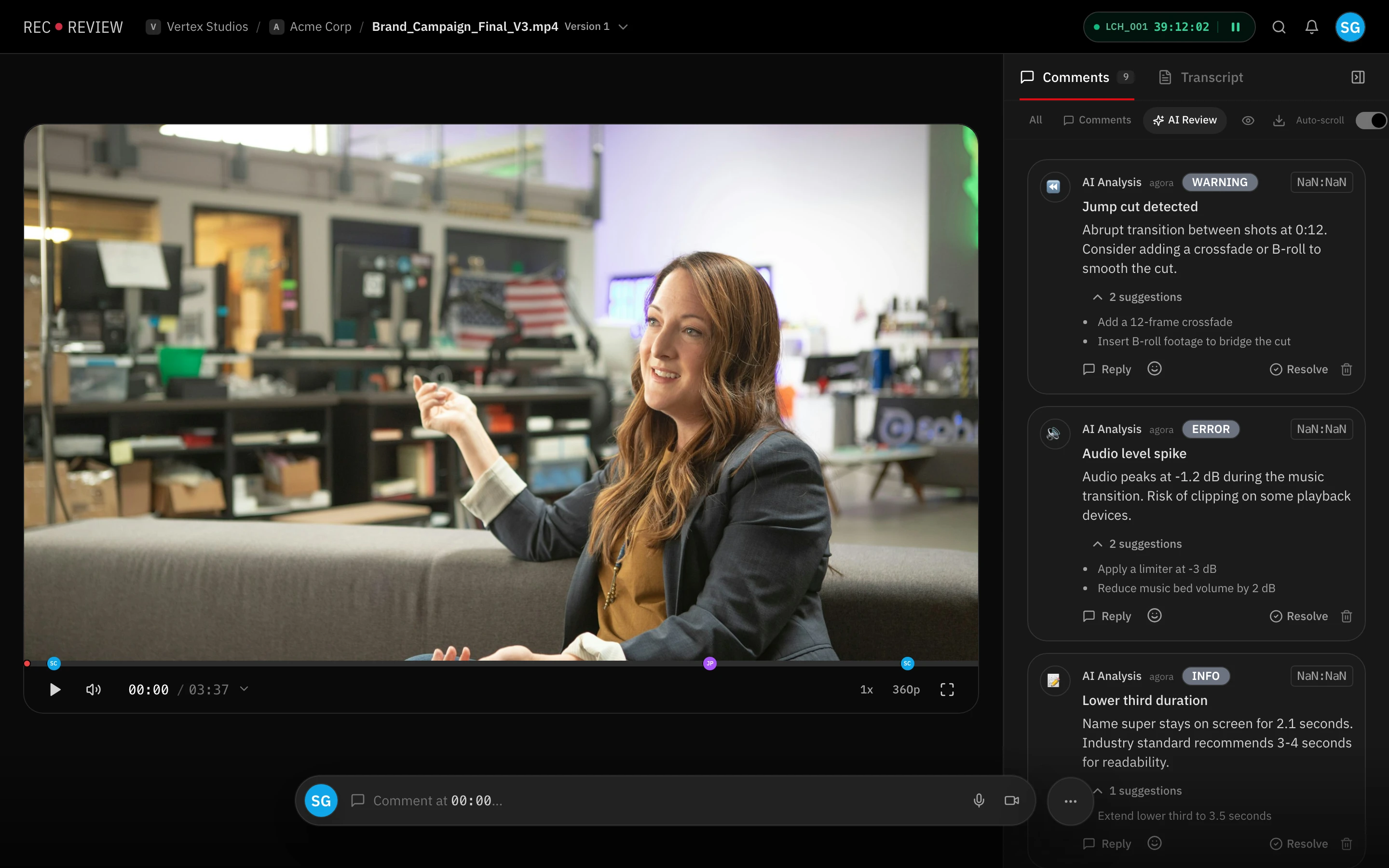
AI findings live in the same timeline as human comments, on the right of the review player. They are not a separate report you have to open.
Work through the findings
- Open the video.
- In the timeline filter, choose AI Review to hide the human comments — or leave it on All to see feedback and findings in one chronological list.
- Click a finding. The player jumps to it, landing two seconds early so you see the moment arriving instead of already past.
- Fix it in your edit, then click Resolve on the item. Reopen puts it back if you were too quick.
What a finding shows
- The author is AI Review, with an icon instead of an avatar.
- A severity badge: HIGH, MEDIUM or LOW.
- The timecode where it was detected.
- A description saying what was found. Measured findings say they came from a measurement and give you the numbers — the loudness in LUFS (the standard measure of perceived volume), the true peak in dBTP (the real peak level of the audio), the exact in and out points of a black segment.
Low-confidence checks
Findings the AI was not sure about are collapsed at the bottom of the list under N low-confidence checks. Open it when you want the long tail; ignore it when you do not. Keeping them out of the main list is what keeps the report worth reading.
Review results
Below the findings, the report section lists the checks that ran, by category, with a pass, warning or failed status. A category with a measured problem is marked as measured and counts the findings behind it.
Export the report
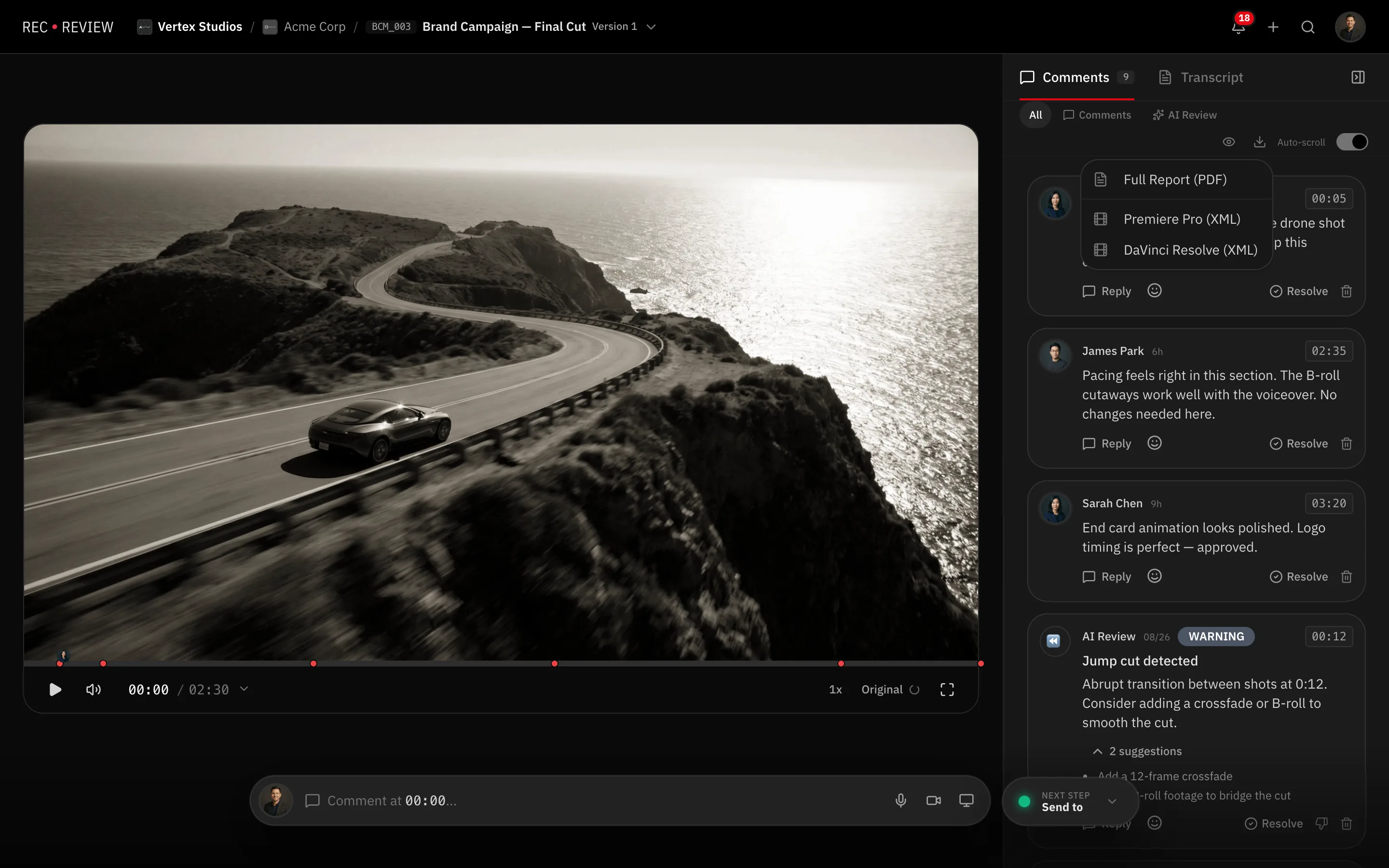
With the review finished, the download menu above the timeline offers:
- Full Report (PDF) — the findings and checks as a document you can attach to a delivery.
- Premiere (XML) and DaVinci Resolve (XML) — the same items as timeline markers, so the editor works from their own timeline.
Tip: Sort your pass by severity, not by time. A single HIGH on the audio peak matters more than a page of LOW findings about black bars.
What’s next
When a finding is wrong, dismiss it properly so the system learns — see Accuracy and false positives.