Every video opens on the same review page: the player on the left, the comment panel on the right. This is where you watch, scrub and leave feedback.
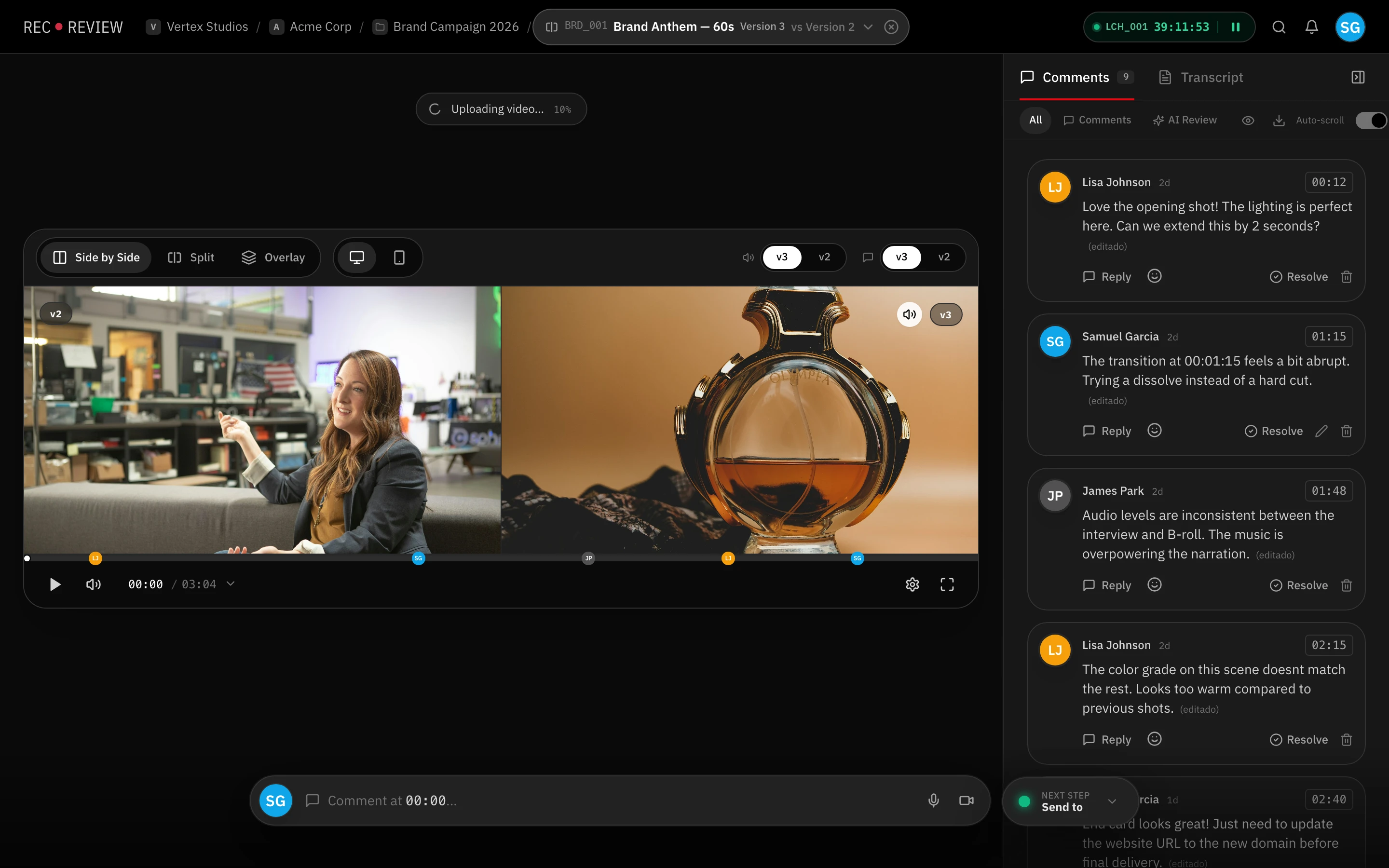
What’s on the page
- The player. Play, timeline, volume, Settings (playback speed, quality) and fullscreen.
- The timeline. Every comment and every AI finding sits on the timeline at its timecode. Click a marker to jump there.
- The side panel. Two tabs: Comments and Transcript. Inside Comments you can filter by All, Comments or AI Review, toggle Hide resolved, and turn Auto-scroll on so the list follows playback.
- Actions. The … button holds Share; the download icon above the comment list holds the report and marker exports.
Playback controls
- Open Settings (the gear on the player bar).
- Pick a speed under Speed — 0.5x, 0.75x, 1x, 1.25x, 1.5x or 2x.
- Pick a resolution under Quality, or leave it on Automatic so it follows your connection.
Press F for fullscreen, or use Expand video to give the player the full width of the page.
Keyboard shortcuts
Press ? on the player to open the same list in the app.
| Action | Keys |
|---|---|
| Play / pause | Space |
| Shuttle reverse / pause / forward | J / K / L |
| Previous / next frame | ← / → |
| Back / forward 5 seconds | Shift + ← / Shift + → |
| Fullscreen | F |
| Mute | M |
| Speed 1x / 2x / reset | 1 / 2 / R |
| Cycle quality | Q |
| This list | ? |
J and L work like an editing suite: press again for 2x, again for 4x. Reverse playback steps through frames, so it looks choppier than playing forward. That is expected, not a fault in your file.
Tip: Frame stepping uses the file’s own frame rate, so a mark you leave with
←/→lands on the exact frame your editor will see.
What’s next
Leave your first note with Add a time-coded comment, or check Video processing status if the player says the video is still processing.