The AI review is opt-in per upload, and each version is reviewed at most once. You choose at two levels: the workspace default and the individual upload.
Choose per upload
In the upload panel, the AI Analysis switch decides for that file. The panel shows what it costs — “Uses AI minutes”, “Will be consumed after upload” — and how much you have left.
When you drop several files at once, the upload list lets you set the switch per file, so a client-facing cut is reviewed and the six working exports next to it are not.
Make it the workspace default
- Click your avatar, top right, and choose Workspace Settings.
- Open the AI Review tab, at the bottom of the sidebar.
- Turn on Automatic AI review.
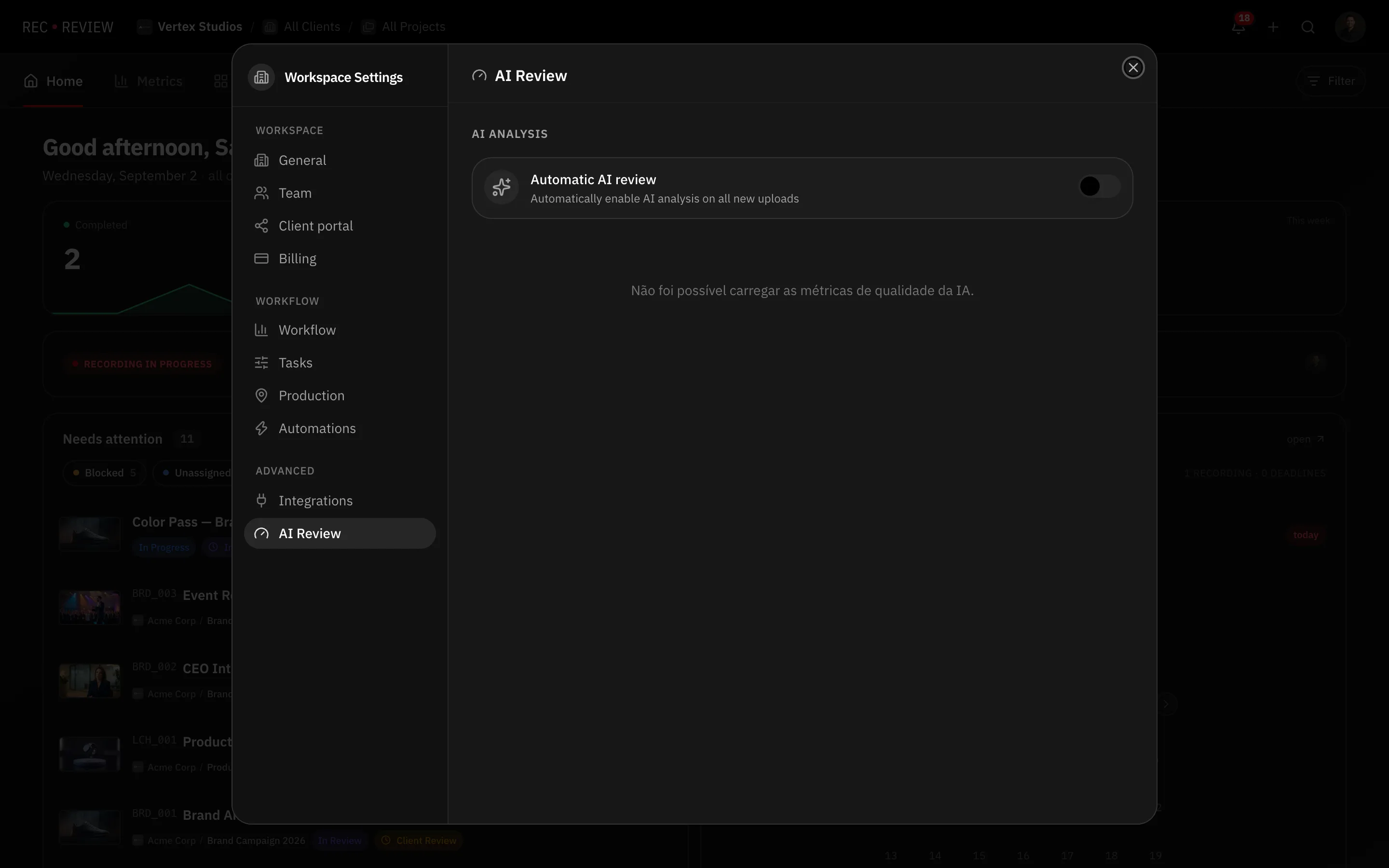
From then on every upload arrives with the review requested, and you only think about it when you want to skip one.
Tip: Automatic is right for teams whose allowance is comfortable and whose uploads are mostly real cuts. Per-upload is right when a lot of intermediate exports pass through the same workspace — see How AI minutes are counted.
A video you skipped
There is no “review it now” button on a video uploaded without the AI review. What exists:
- Upload the export as a new version of the same task with AI Analysis on. The version keeps the comment history and gets its own report.
- Generate the transcript alone from the Transcript tab, if what you wanted was the spoken content and not the technical check — see Transcription and the script check.
Hide the results from clients
Turning the review off is not the only way to keep findings internal. In Workspace Settings → Client portal, under Visibility, turn on Hide AI Review for clients. Your team keeps the report; clients and visitors see only human comments.
What’s next
Learn what the AI review actually checks before deciding to make it automatic.