Uploading a cut is what starts a review: the video gets a page, a timeline and a comment panel. Export an MP4 with H.264 — it plays everywhere and scrubs smoothest for whoever reviews it.
Before you begin: one file can be up to 2 GB on Creator, 5 GB on Pro and 10 GB on Studio. The trial runs on Studio limits.
Upload from the dashboard
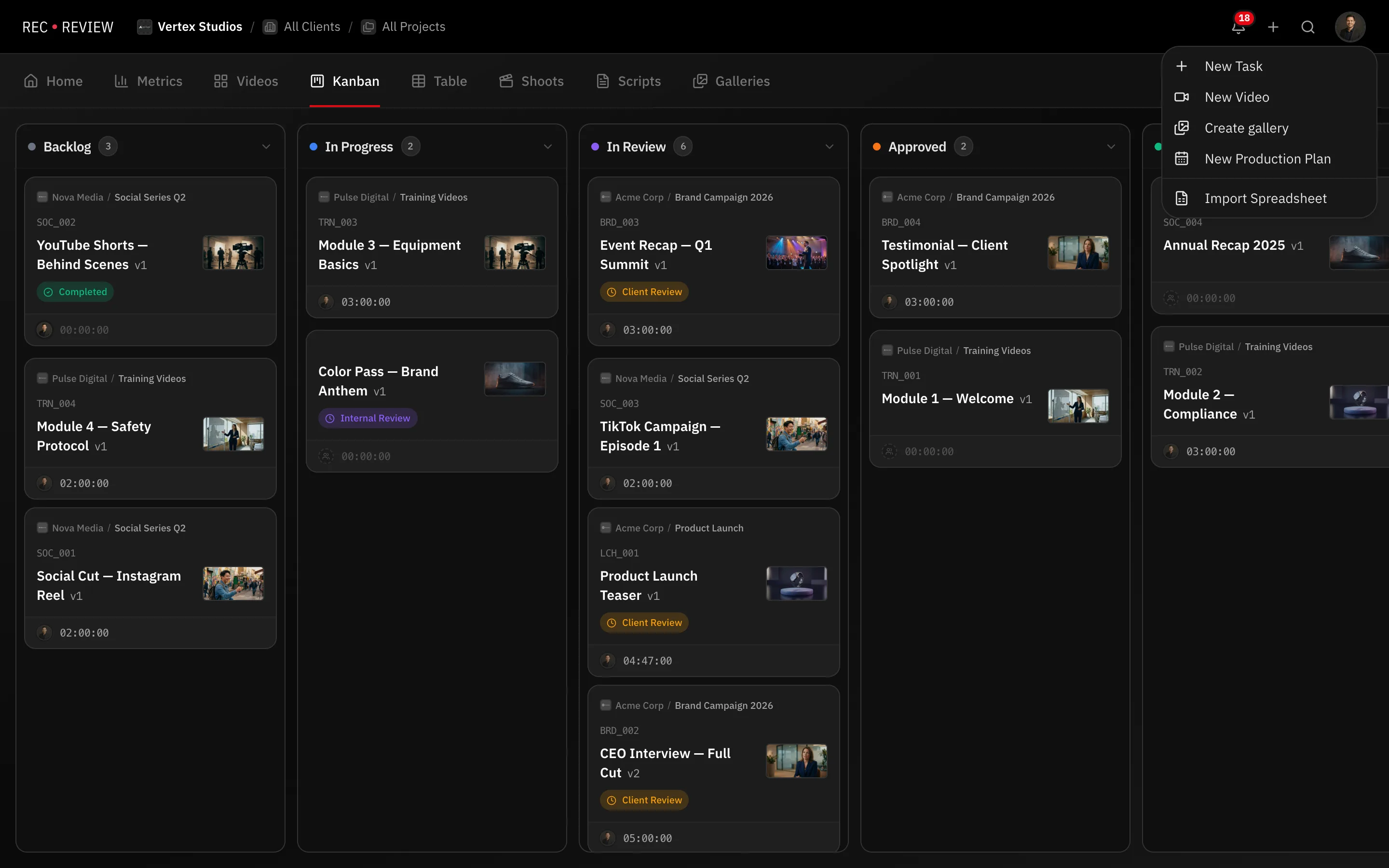
- In the top bar, click + and choose New Video. The upload window opens.
- Drag the file into the box, or click the box to pick one from your computer.
- Attach the video to an existing task, or create a new one — type a Task Title, and pick a Client and a Project if you use them.
- Leave AI Analysis on to run the technical pass, or turn it off to upload only.
- Click Upload + AI Analysis (or Start Upload, with the AI review off).
If the filename contains a task’s video code (for example ABC_001), RecReview finds the task and marks it Detected. If the file looks like a newer cut of something already uploaded, it offers to save it as a new version instead.
Drag a file in from anywhere
You do not have to open that window. Drag one or more video files onto the dashboard and drop them on the zone that covers the screen. They join the upload list and keep going while you carry on working. Files that are not video, are over the size limit, or are already in the list are skipped, with a message saying why.
Let a folder do it
On the Mac app you can point RecReview at your export folder. When a render finishes, the file uploads by itself, and a filename with a video code lands on that task as a new version. See the Mac app.
What happens next
- The file uploads. This is where the progress bar spends most of its time.
- The video becomes watchable as soon as the upload lands. Open it and start commenting while the rest continues.
- Meanwhile RecReview tunes the playback quality to each viewer’s connection, makes the thumbnails and — if you asked for it — runs the AI review.
- When the review finishes, the video is marked complete and the report appears.
Note: A video that says it is still processing but plays fine is normal. The smoothest playback quality and the AI report arrive shortly after the video does.