Use a gallery when a shoot also produces stills. The photos get the same review page, comments and approval as a cut, so you don’t need a second tool or a WeTransfer link.
Create a gallery
- Click + in the header and choose Create gallery. You can also open the Galleries tab.
- Type a name in New gallery — title (e.g. Brand Shoot).
- Pick a Client and a Project if the gallery belongs to one. Leaving them as No client and No project is fine for internal work.
- Click Create gallery.
A gallery can also live inside a production plan. In the plan editor, Add → Gallery puts the shoot’s stills on the same timeline as the video blocks.
Upload the photos
- Open the gallery to reveal its Photos panel.
- Click Add photos, then Select photos — or drag them in. JPG, PNG, WebP and HEIC are accepted.
- Watch the count while it runs. Upload complete! confirms it, and Add more photos starts another round.
To replace one photo without losing its comments, use New version on that photo. The client can then use Compare to see the versions side by side. Delete removes a photo permanently.
Tip: Drop a whole shoot in at once. The photos upload one after another, and a single file failing does not cancel the rest.
Send it to the client
- Click Generate link. The gallery moves from private to shared.
- Use Copy to put the link on the clipboard, or Open review to check the client’s view yourself first.
The share dialog is the same one used for videos, so the options you already know — password, expiry, requiring visitors to identify themselves — apply here too.
To send it as a delivery rather than a link, use Send to Client on the gallery’s task. The client’s contacts are pre-filled and the gallery goes out for approval.
What the client does
At the link the client sees Protected gallery if you set a password, and is asked to identify themselves if you require it. Then they can:
- Browse the Photos tab, one photo at a time or in the grid.
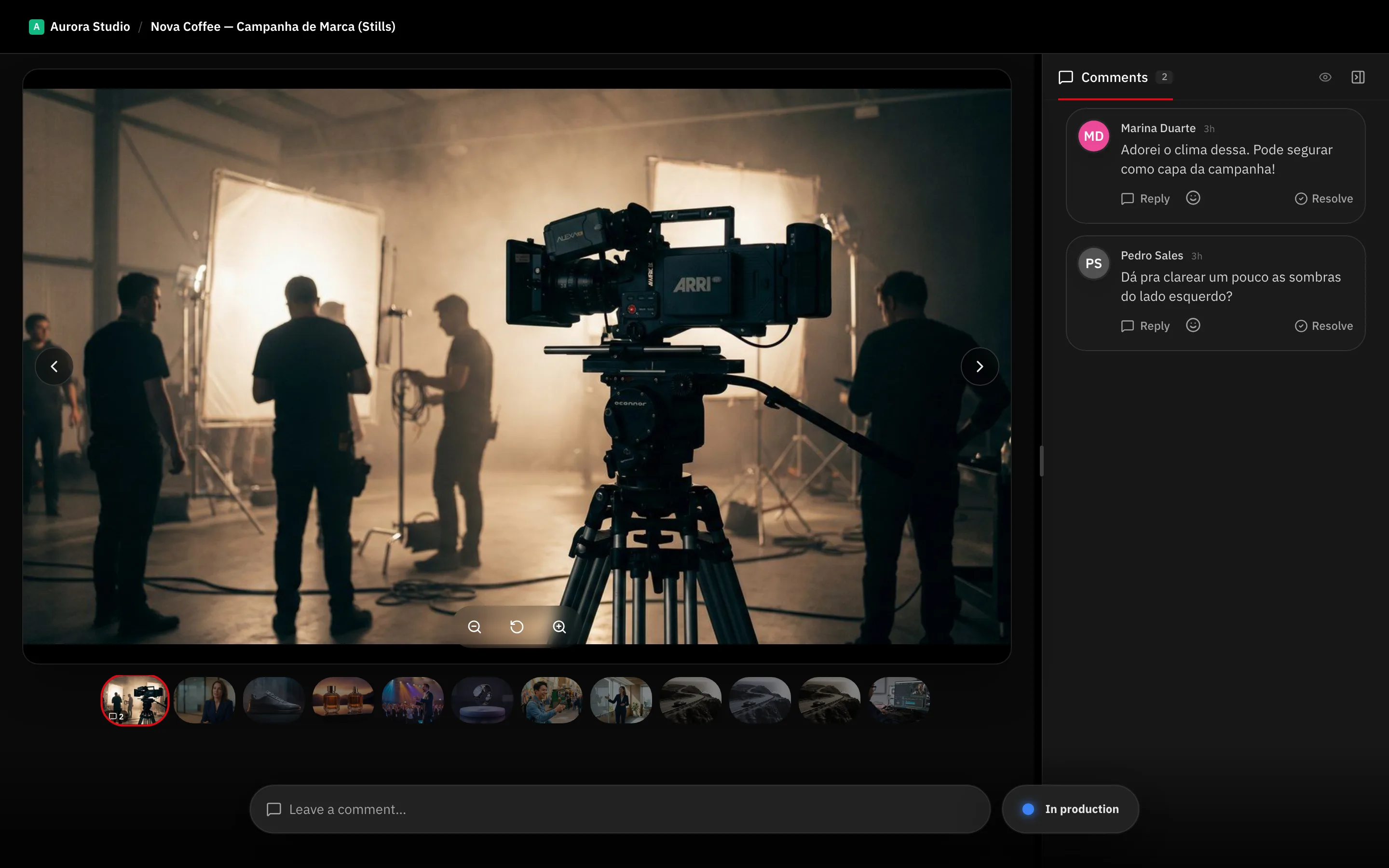
- Comment on any photo, including a drawing on the image itself, and follow the thread in the Comments tab.
- Use Compare when a photo has more than one version.
- Use Download to pull the whole delivery as a zip.
- Finish with Approve or Request changes.
Note: A client who already approved can reopen the gallery. RecReview warns that reopening sets the status back to changes requested, so an approval is never silently undone.
What’s next
If the client should find their galleries alongside their videos, see Set up the client portal.