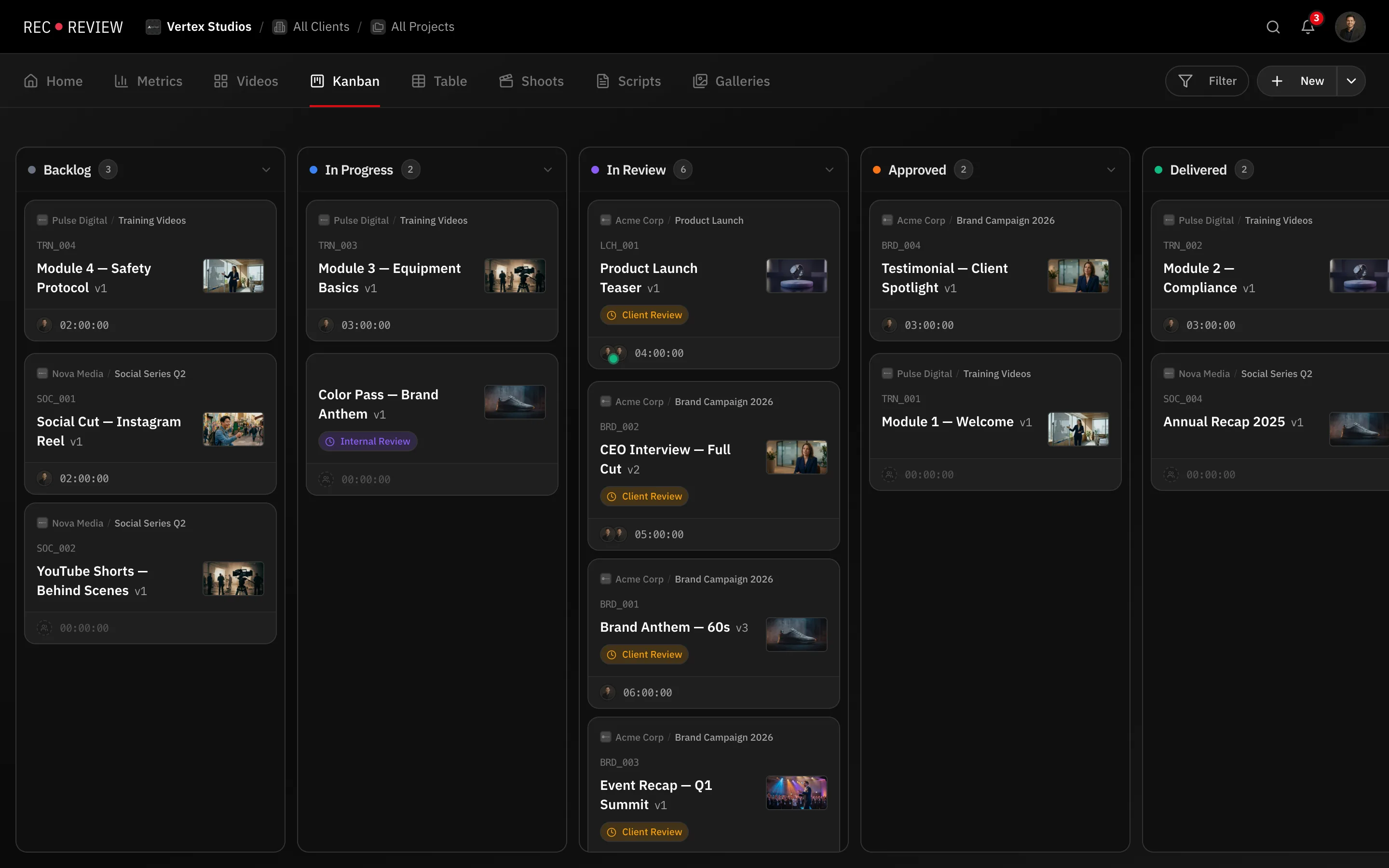
The dashboard is one set of work shown several ways. Switching a view never changes your filters — the same client, project and search stay applied.
The views
The tabs sit across the top, under the header.
| View | What it shows |
|---|---|
| Home | What needs you today: your tasks, deadlines, recent activity |
| Metrics | Workspace numbers — owners and admins only |
| Videos | A grid of video cards with thumbnails |
| Kanban | Tasks as cards in workflow columns |
| Table | Every field in rows, groupable and sortable |
| Shoots | Production plans and shooting days |
| Scripts | Scripts attached to tasks |
| Galleries | Photo galleries delivered to clients |
Each view has its own address (/dashboard/kanban, /dashboard/table, and so on), so you can bookmark the one you live in.
Switch client or project
The top bar is a trail of Workspace › Client › Project. Click any part of it to switch, or to go back to All Clients and All Projects. Add client and Add project are in the same menus, and Manage opens the full list.
Archived clients stay hidden until you turn on Show archived in “All Clients”.
Search anything with ⌘K
Press ⌘K (Ctrl+K on Windows) anywhere. Type and results group by kind: tasks and videos, recording times, production plans, scripts, clients, projects and people. It also searches what was spoken inside your videos.
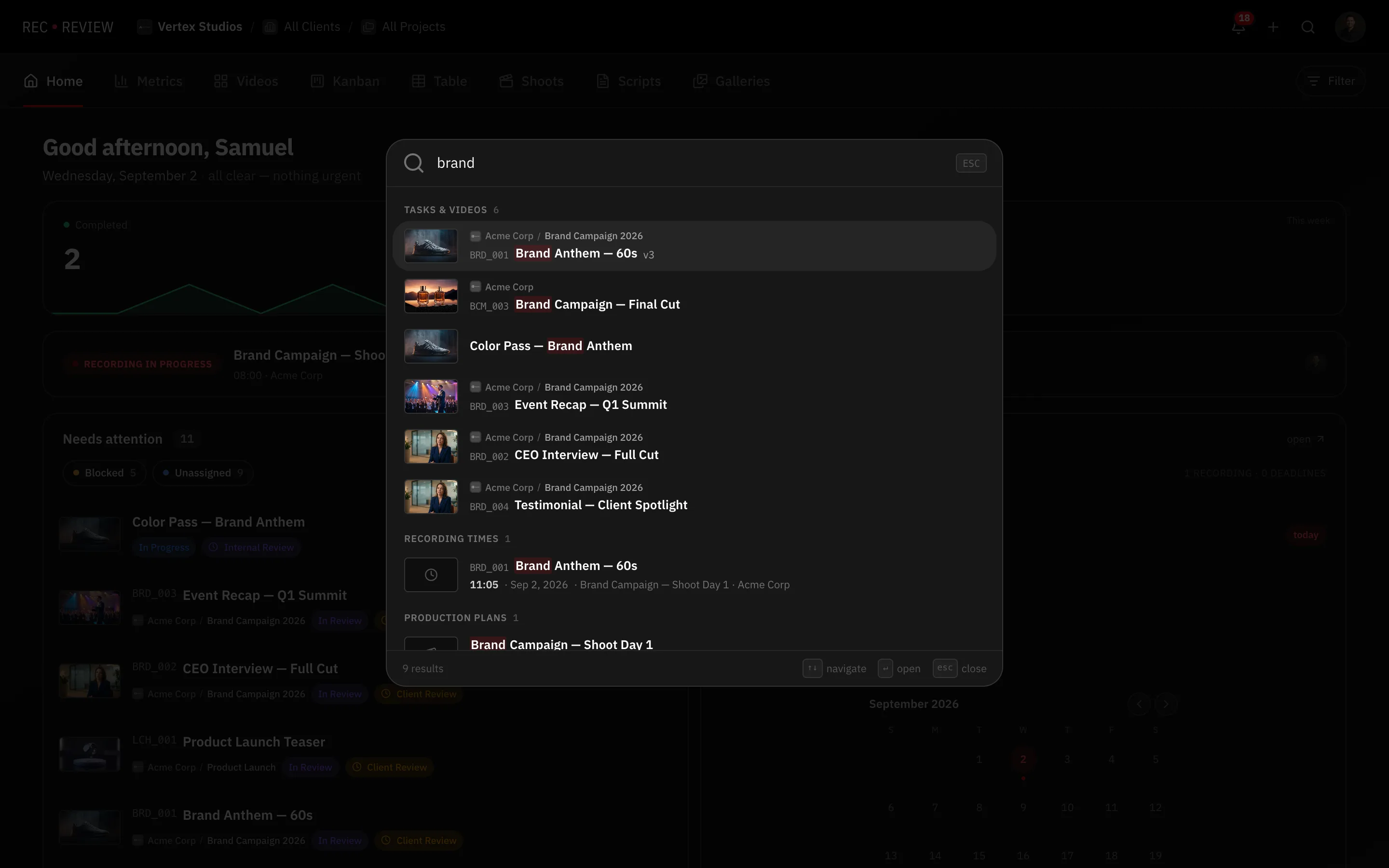
Open it without typing and it lists your recent items, so it doubles as a jump list.
Theme and settings
Click your avatar, top right. The menu holds three theme buttons — light, dark and system — plus Settings (yours), Workspace Settings (the team’s), What’s new and Sign out.
Tip: Cmd-click (or Ctrl-click) a task or video card to open it in a new tab instead of the side panel.