A photo gallery is reviewed the same way as a video: you pick, comment and decide. Galleries sit next to videos in the portal, and open in a review page of their own.
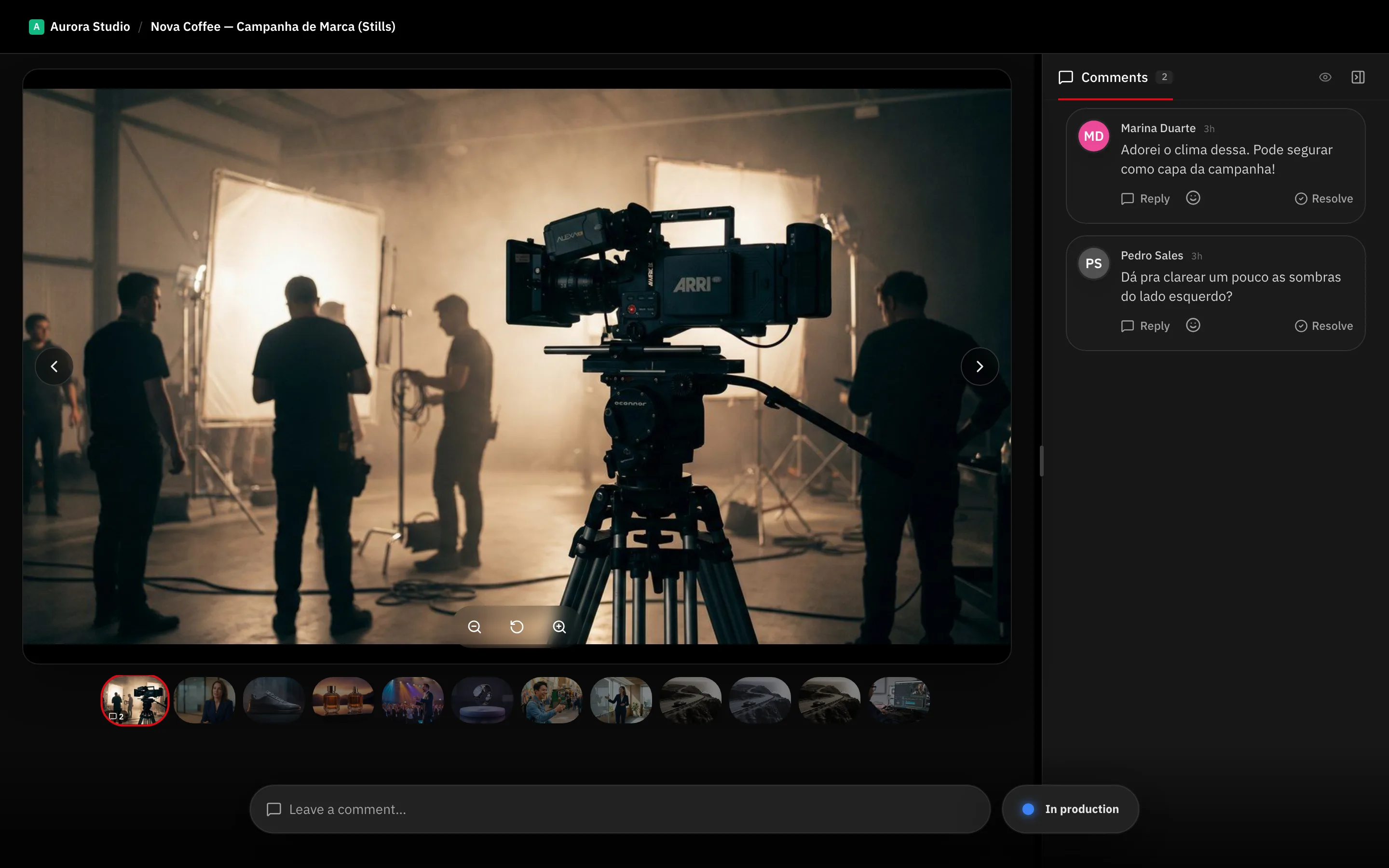
Open a gallery
From the portal, go to Deliveries and click Open gallery on the card. From a link sent by email, the gallery opens directly.
Depending on how the team shared it, you may first see a Protected gallery screen asking for a password, or an Identify yourself form asking for your name and email.
Pick your favorites
- Open a photo.
- Click Add to favorites. The photo is marked Favorited.
- Repeat for every photo you want.
Favorites are your selection — the team sees exactly which frames you picked. If the gallery has a selection limit, the screen tells you when you reach it.
Comment on a photo
Type in Leave a comment… under the open photo. A comment can carry a drawing on the image itself. The Comments tab lists everything, and Hide resolved clears what the team already handled.
Approve or request changes
The feedback control sits at the bottom, labelled Your feedback.
- Approve — the gallery then shows a Gallery approved banner with your name and the date.
- Request changes — the banner becomes Changes requested.
Tip: Favorite first, comment second, decide last. Your selection and comments travel with the verdict, so the team knows both which photos you want and what to fix.
Versions
When the team uploads a new take of the gallery, Versions appears. Compare puts the two side by side, and Exit comparison returns to the single view.
Downloads
Download selected downloads your favorites. Download takes what the gallery allows. Both appear only when the team enabled downloads for you.
What’s next
The same approve and request-changes logic applies to videos — see Approve a video or request changes.