The portal has four tabs: Home, Deliveries, Recordings and Metrics. Read this before you send the link, so you know exactly what the client will find there.
Everything in the portal belongs to one client. A contact never sees another client’s work, and internal-only items stay in your dashboard.
Home
The landing tab answers “what needs me?”.
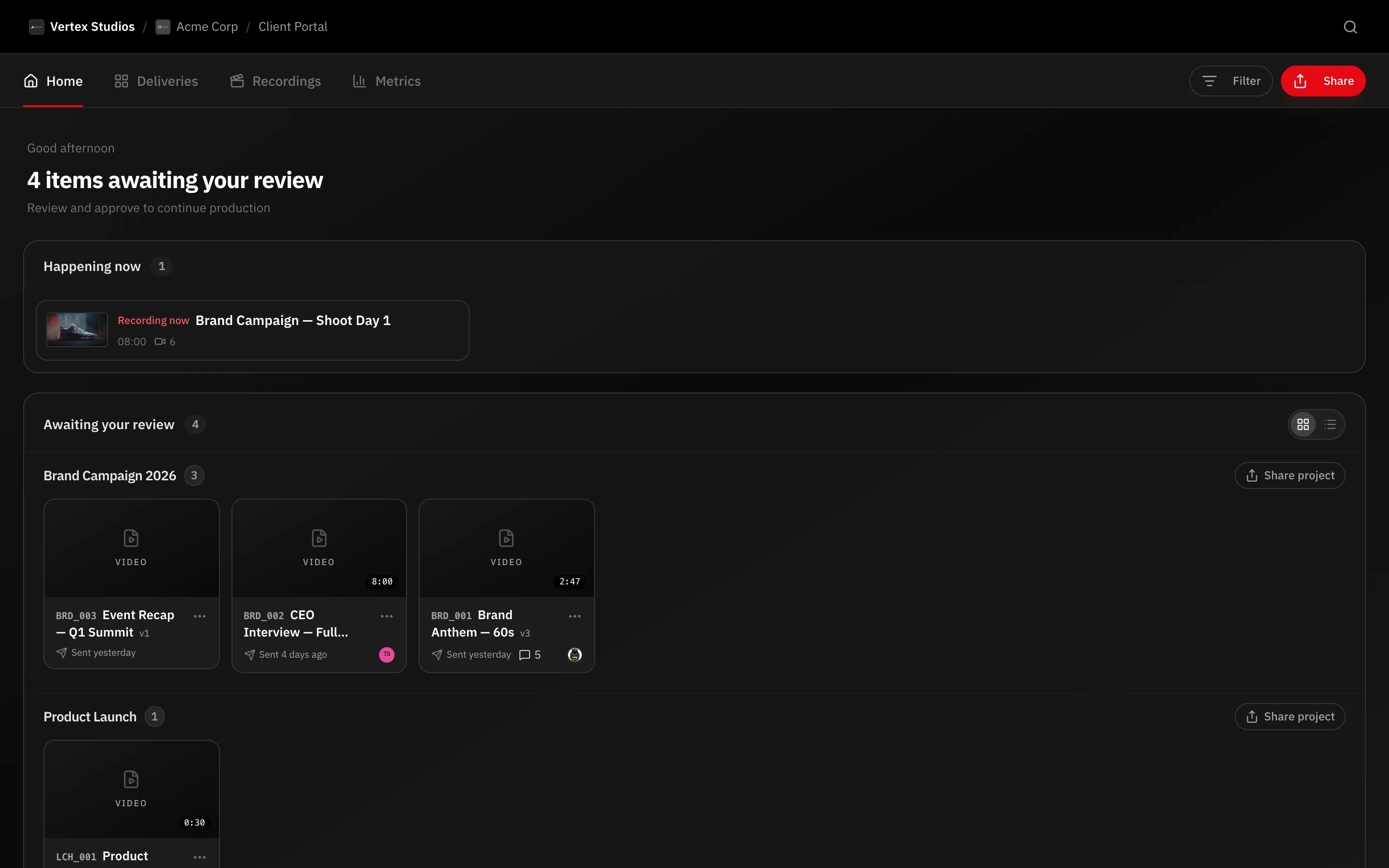
- Happening now — a shoot in progress today.
- Awaiting your review — the deliveries waiting on this client, grouped by project, each with a Review button.
- Below those, recent activity, upcoming deadlines and progress per project.
When nothing is pending, the header reads All up to date.
Deliveries
Every video, photo gallery, script and production plan shared with the client.
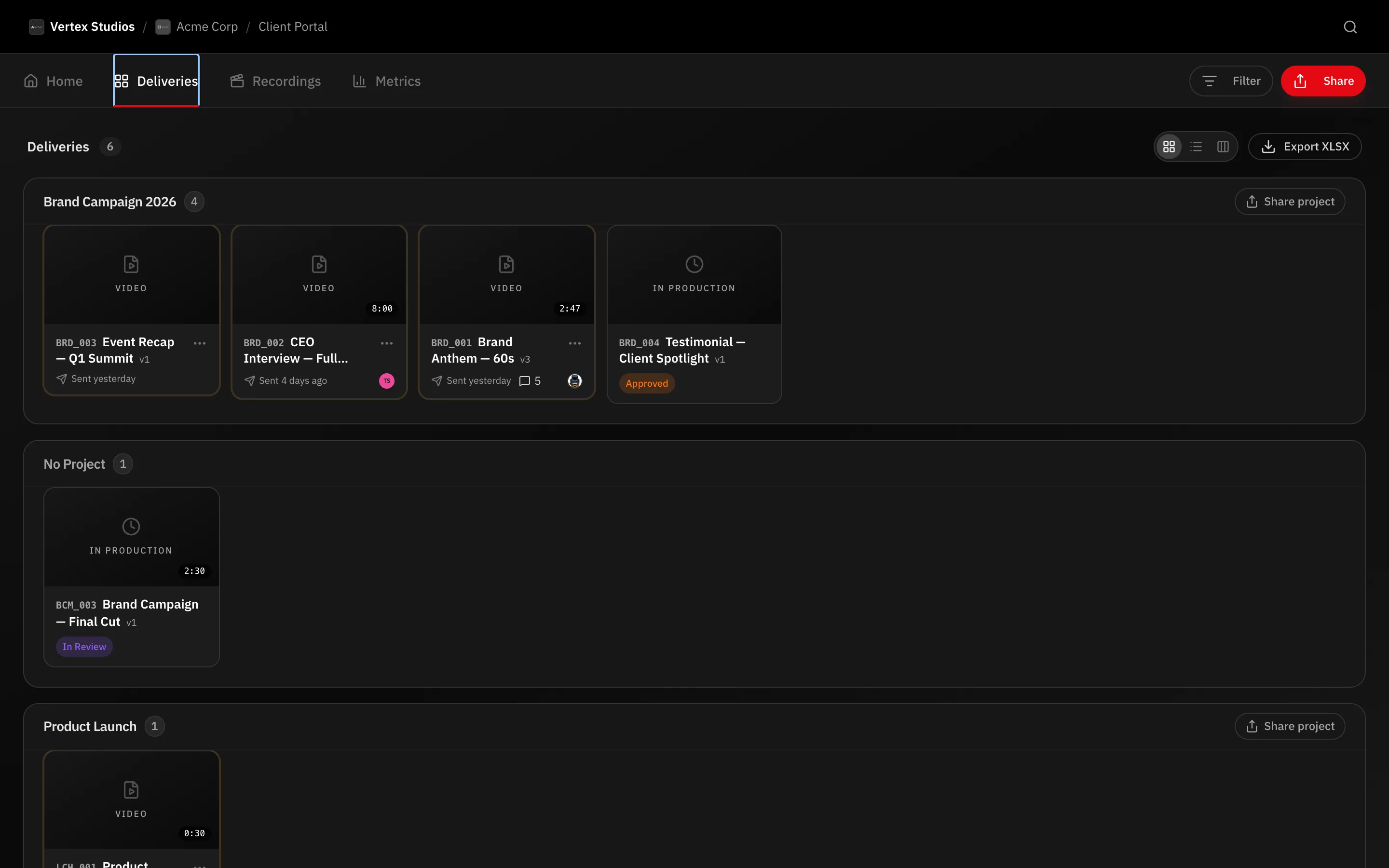
Three view buttons at the top right switch the shape:
- Grid — cards with thumbnail, version and status.
- Table — sortable columns (Delivery, Project, Status, Phase, Version, Due date, Comments, Viewed), resizable by dragging the divider.
- Board — the same deliveries grouped in columns.
Filter covers project, review state (Awaiting review, Approved, Changes requested), status and phase. Export XLSX downloads the current list. A New badge marks a version the contact has not opened yet.
Recordings
Recording days that come from your production plans, upcoming first and past below. Opening a day shows its schedule; Full plan opens the shared plan.
Metrics
Read-only numbers about the working relationship: Deliveries over time, minutes of video delivered, Your average review time, Versions until approval and Approved on first version.
Always available
- The bell shows portal notifications — new deliveries, replies and mentions.
- The avatar menu holds My profile and Log out.
- Deliveries open the full review player, where the client comments with a timecode, compares versions and approves.
Note: To keep AI Review findings away from clients and visitors, open Workspace Settings → Client portal and turn on Hide AI Review for clients.
What’s next
See how approvals work and what a gallery review looks like.
The client has their own tour of the same screens: For your clients — send it with the first link.