The XML carries the markers — the AI issues and the comments — but not the media. You import it next to the footage you already have, and it lands as a marked-up sequence.
Before you start: export is available on paid plans, and only once the video has finished processing.
Export the right one
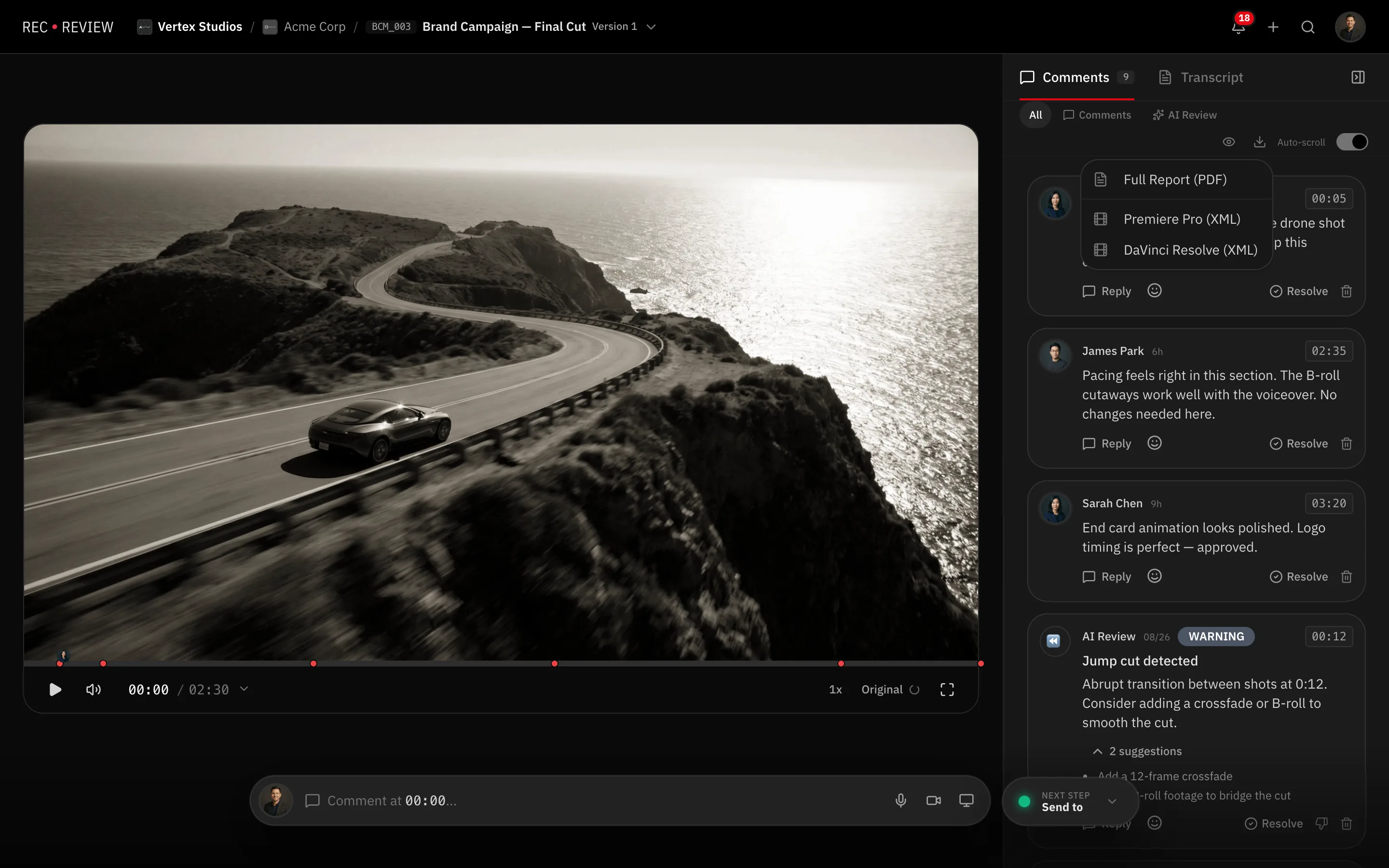
- Open the video’s review page and click the download icon above the comments.
- Choose Premiere (XML) or DaVinci Resolve (XML). They are different files; the Resolve one is not a renamed Premiere file.
The download is named after the video and the format you picked.
Import it
In Premiere, use File → Import and select the .xml. It creates a sequence containing the markers.
In DaVinci Resolve, use File → Import → Timeline and select the file. Resolve reads it as a timeline rather than a project.
Then relink the media. The XML points at your source file, so Premiere and Resolve ask where it is if the path has changed.
When the import fails
Work through these in order:
- Wrong file for the application. The Premiere XML in Resolve, or the reverse, fails or produces nothing useful. Re-export with the right option.
- The file was renamed or edited. Open it in a text editor only to look, never to save. A well-meaning reformat breaks it.
- The frame rate does not match. The Resolve export builds its timings around the frame rate of the video you uploaded. If your project runs at a different rate, every marker lands at the wrong point in the timeline, even though the import succeeds. Match the project to the source.
- Cloud sync mangled it. Download again, straight to a local folder, rather than importing from a syncing directory.
- Your editing software is old. Update to a current version before assuming the file is wrong.
Tip: If markers import at the right positions but you expected different ones, check who could see them. Private comments only export for people allowed to see them, so an export made by a different user can legitimately contain fewer markers.
If you only need to read the notes
You do not have to go through your editing software. The Full Report (PDF) export gives you the same issues and comments as a document, and transcripts export separately as SRT, VTT, TXT or JSON.
If the import still fails, send us the exported file along with your application and version — see Contact support.