There are two ways to change your password: a recovery link if you are locked out, and a form inside the app if you still remember the old one.
If you cannot sign in
- Open the sign-in page and press Forgot password?.
- Enter your email and press Send link.
- Open the email and click the link. It takes you to Create new password.
- Type the new password twice and press Save new password.
You are signed in with the new password.
The link expires in 1 hour. If it has lapsed, or the page says the link is invalid, press Request new link and start again.
Tip: No email after a couple of minutes? Check the spam folder, and make sure you used the same address you signed up with — not an alias that forwards to it.
The page gives the same confirmation for every address you submit, so silence can simply mean that address is not the one on the account.
If you are already signed in
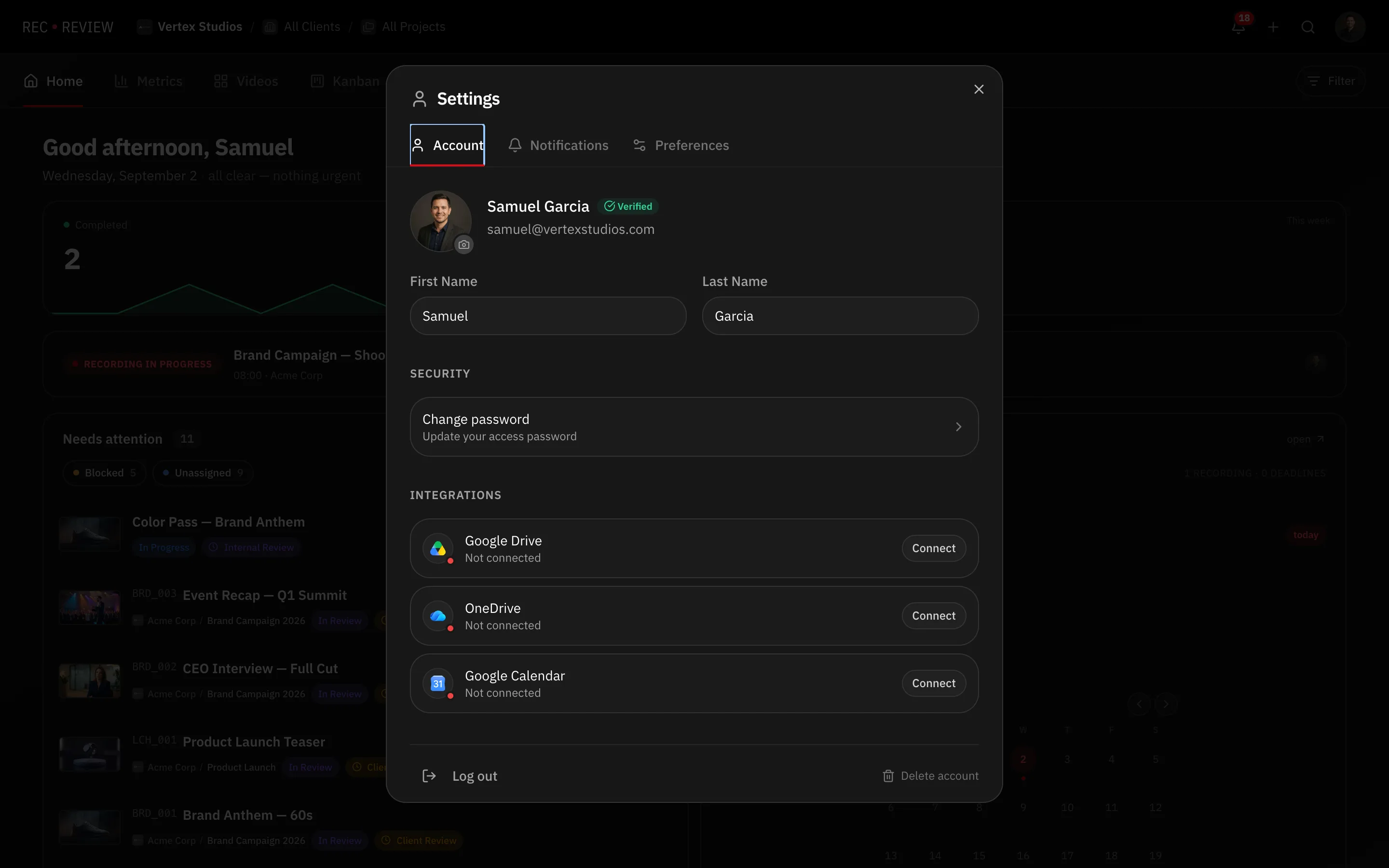
- Click your avatar at the top right and choose Settings.
- Open the Account tab and find Security.
- Press Change password.
- Fill in Current password and the new one, then confirm it.
If your account uses Google, Microsoft or Apple
There is no RecReview password to reset. The Account tab says your password is managed by Google, Microsoft or Apple, with a Manage link to their own security settings.
Want a password as well? Use the Forgot password? steps above with the same email address. It sets one without taking the other button away.
A password that holds up
The minimum is 8 characters with an uppercase letter, a lowercase letter and a number. A long phrase only you would say beats a short password full of symbols, and a password manager handles the rest.
Nothing works
Write to support@rec.review from the address on the account. See contact support.