Every member of a workspace has exactly one role, and the role decides what they can touch. Pick it when you invite someone, and change it whenever the work changes.
Before you start: only owners and admins open this screen.
Where roles live
- Click your avatar at the top right and choose Workspace Settings.
- Open the Team tab.
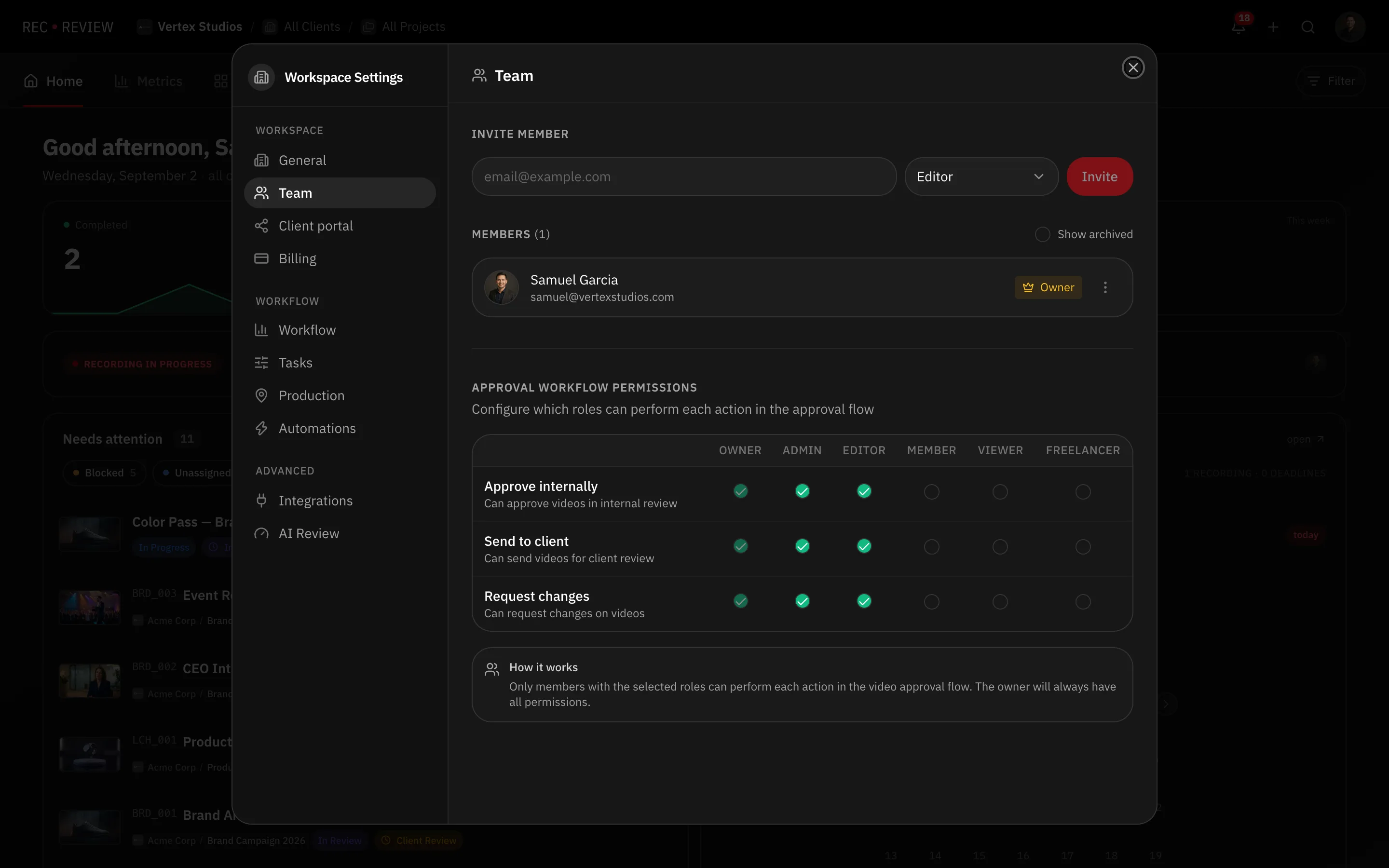
Invite member is at the top, with the role selector next to the email field. Below it, each member’s row has their current role.
The roles
| Role | What it means |
|---|---|
| Owner | Full workspace control, including billing and deletion |
| Admin | Manages team, settings and all tasks |
| Editor | Creates and edits tasks, videos and comments |
| Member | Works on assigned tasks, cannot create new ones |
| Viewer | View-only access to tasks and videos |
| Freelancer | Limited access to specific assigned projects |
Owner is not in the invite list — it is whoever created the workspace. The other five are all invitable, and Editor is the default.
What only owners and admins can do
- Open the workspace tabs: General, Team, Client portal, Billing, Workflow, Tasks, Production, Automations, Integrations and AI Review.
- Invite people, change roles, suspend and archive members.
- Buy plans and add-ons, and open the payment portal.
- See the Metrics view on the dashboard.
Cancelling the subscription and deleting the workspace are owner-only.
Limit someone to certain projects
Freelancer and Member can be restricted to a list of projects.
- In the Team tab, open the ⋮ menu on that person’s row.
- Choose Project Access and tick the projects they work on.
They now only see tasks inside those projects. The client’s other work stays invisible to them.
Who approves what
Further down the Team tab, Approval Workflow Permissions is a grid of three actions against the six roles:
- Approve internally — can approve videos in internal review.
- Send to client — can send videos for client review.
- Request changes — can request changes on videos.
Tick the roles allowed to perform each action. The owner always has all three and cannot be unticked.
Note: Clients and portal contacts are not workspace members and have no role here. What they can do is set on the share link and in the client portal — see client portal overview.