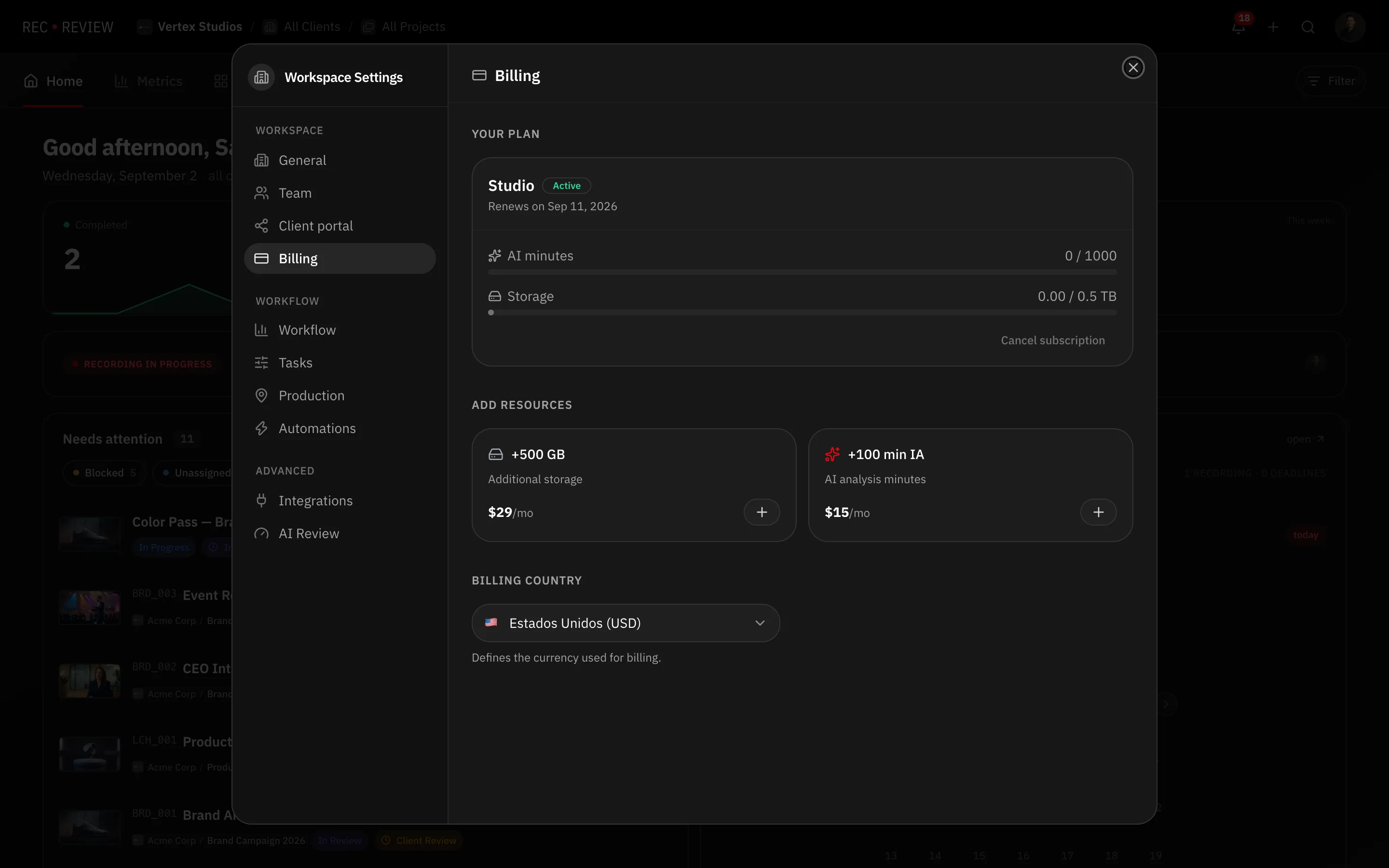
Everything here happens in one place: the Billing tab of your workspace settings. Use it to move up a plan, stop the subscription, or turn it back on.
Before you start: you have to be a workspace owner or admin. Cancelling is owner-only.
Open the Billing tab
- Click your avatar at the top right and choose Workspace Settings.
- Open the Billing tab.
Check Billing country at the bottom of the tab first. It decides whether you are charged in dollars or reais, and the prices above follow it.
Upgrade
- Choose Monthly or Yearly with the toggle above the plan list.
- Press Upgrade on the plan you want — or Choose, on a workspace with no subscription yet.
- Complete the checkout.
If you already have an active subscription, the change happens in place, with no second checkout. The difference is adjusted against what you paid for the current period. The new storage limit and AI minutes apply as soon as the payment goes through.
Note: If the subscription is paid by Pix, the new plan applies right away and the new price starts at the next charge, with no proration. Switching between Monthly and Yearly doesn’t happen in place: change the payment method to a card first. See Invoices and payment methods.
Downgrade
The plan list only offers the plans above your current one. To move to a smaller plan, cancel the current subscription and subscribe again when the period ends. Or write to support and we will move it for you.
Warning: A smaller plan means a smaller storage limit. Get your usage under the new limit first, or uploads will be refused.
Cancel
- In the Billing tab, press Cancel subscription at the bottom of the plan card.
The subscription is marked to end at the close of the current period. You keep everything you paid for until then, and the card reads Until followed by the date.
Nothing is deleted when it lapses. What you lose is uploading and running the AI review.
Resume
While the cancellation is still pending, the card shows Resume subscription. Press it and automatic billing comes back — the date reads Renews on again.