Storage is counted per workspace, across every video in it. Creator includes 500 GB, Pro 2 TB and Studio 5 TB. Check it before a big project, not in the middle of a delivery.
Check your usage
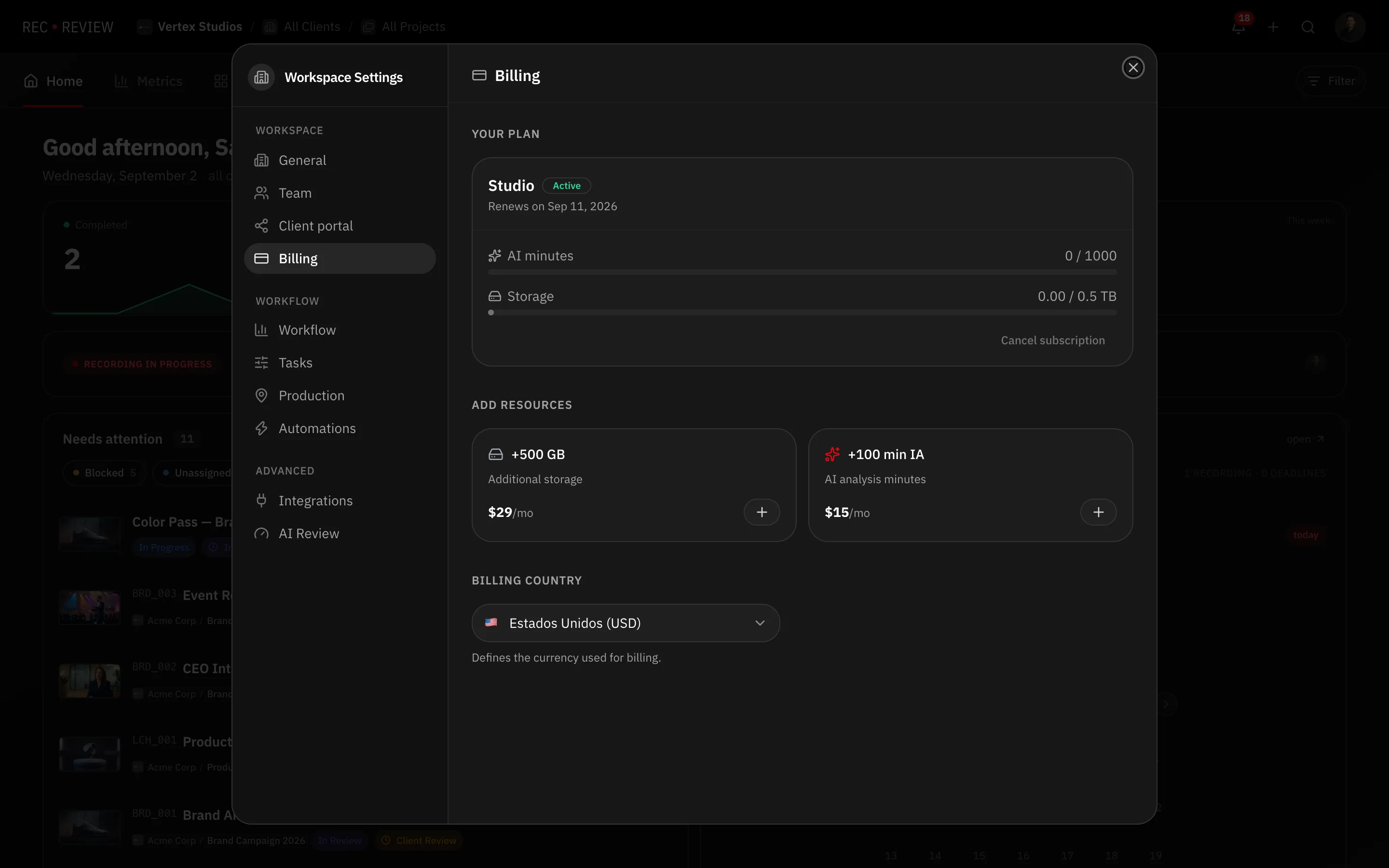
- Click your avatar at the top right and choose Workspace Settings.
- Open the Billing tab.
The Storage bar shows used and total. It turns amber and then red as you approach the limit, so you get a warning before an upload fails.
Maximum size of one file
Separate from the total, a single file cannot exceed your plan’s ceiling:
| Plan | Max file size |
|---|---|
| Creator | 2 GB |
| Pro | 5 GB |
| Studio | 10 GB |
Files over the limit are refused before the upload starts, with a message saying why.
When you hit the limit
The upload is refused with Storage limit exceeded, showing what is available and what the file needs. Three ways out:
- Delete what you no longer need. Removing a video frees its space immediately.
- Buy the storage add-on. In the Billing tab, under Add resources, press + on +500 GB ($29/mo). Add-ons stack.
- Move to a bigger plan. See plans and pricing.
Warning: Deleting a video deletes its versions, comments and AI report with it. If you only want the space back, download the original file first.
Uploads blocked for another reason
If the storage bar is nowhere near full and uploads are still refused, the cause is billing rather than space: an expired trial, or a subscription marked as cancelled or unpaid. The Billing tab says which. See upgrade, downgrade or cancel.