A review is only finished when every note has an answer. Resolving is how you mark that a note has been dealt with, without deleting the history.
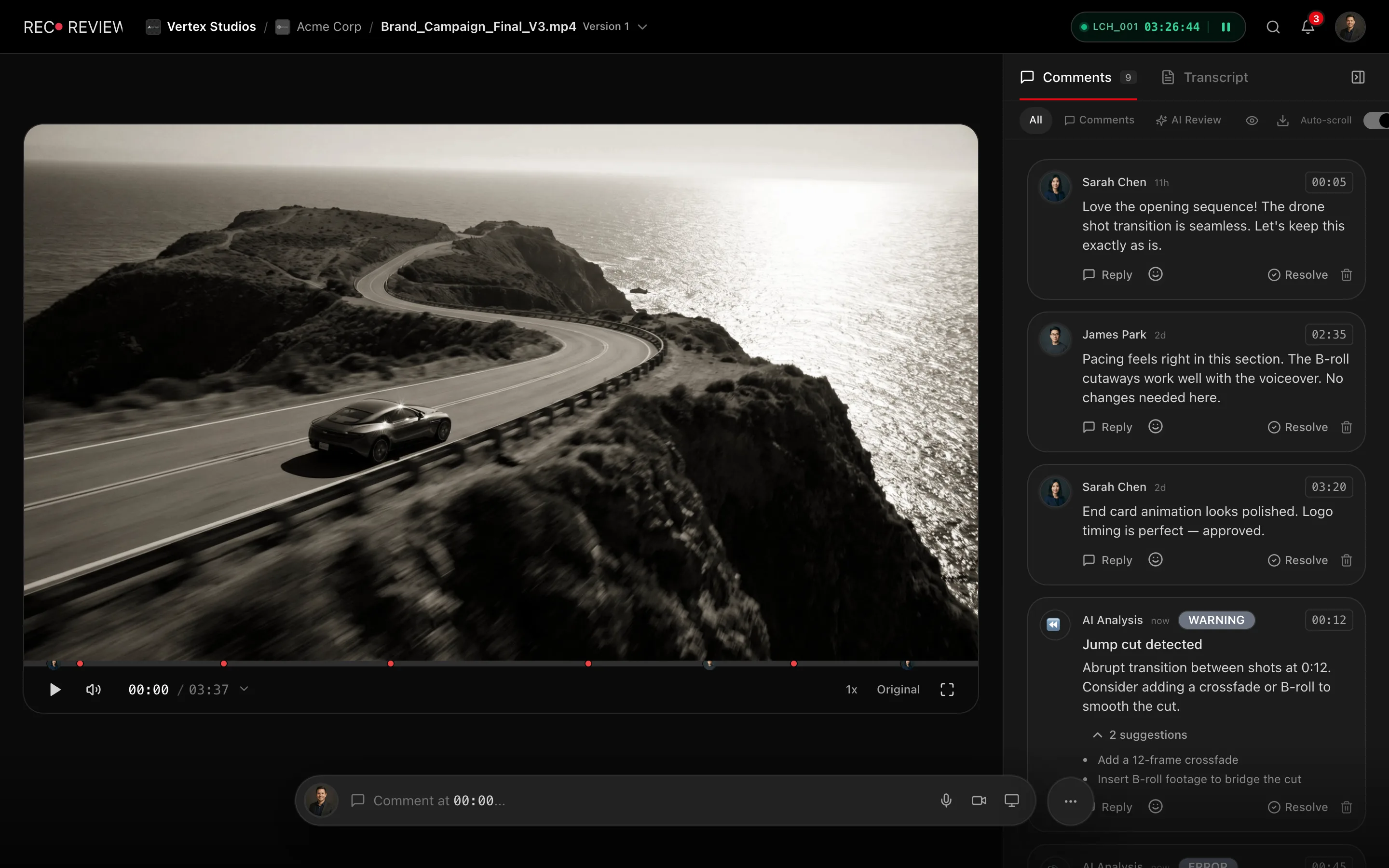
Resolve a note
- Hover the comment in the panel.
- Click Resolve.
The comment stays where it is, now stamped with who resolved it and when — for example Resolved by Ana on 12/03 at 14:22. Click Reopen on the same comment to put it back in play.
Keep the list readable
- Hide resolved — the eye icon above the list drops everything already closed, so what is left is what is left to do.
- All / Comments / AI Review — separates the notes people wrote from what the AI flagged.
- Auto-scroll — follows playback, highlighting each note as the playhead reaches its timecode.
Dismissing AI findings
Findings from the AI review are not resolved, they are dismissed, with a reason: Not a problem (the AI got it wrong) or Irrelevant (real, but it doesn’t matter in this video). Dismissed items are marked Dismissed and drop out of the working list.
Tip: Resolve as you go rather than at the end. The count next to each version tells the client at a glance how much of their feedback is already handled.
Across versions
Comments belong to the version they were left on. When you upload a new cut, its timeline starts clean and the previous version keeps its own thread — see Versions and comparison.
What’s next
When there is nothing left pending, the client decides: Approve or request changes.