A review link lets someone watch and comment without joining your workspace. Use it for a one-off review; for a permanent, per-client space, use the client portal instead.
Before you begin: only the video owner can change these settings. Other members see them read-only.
Steps
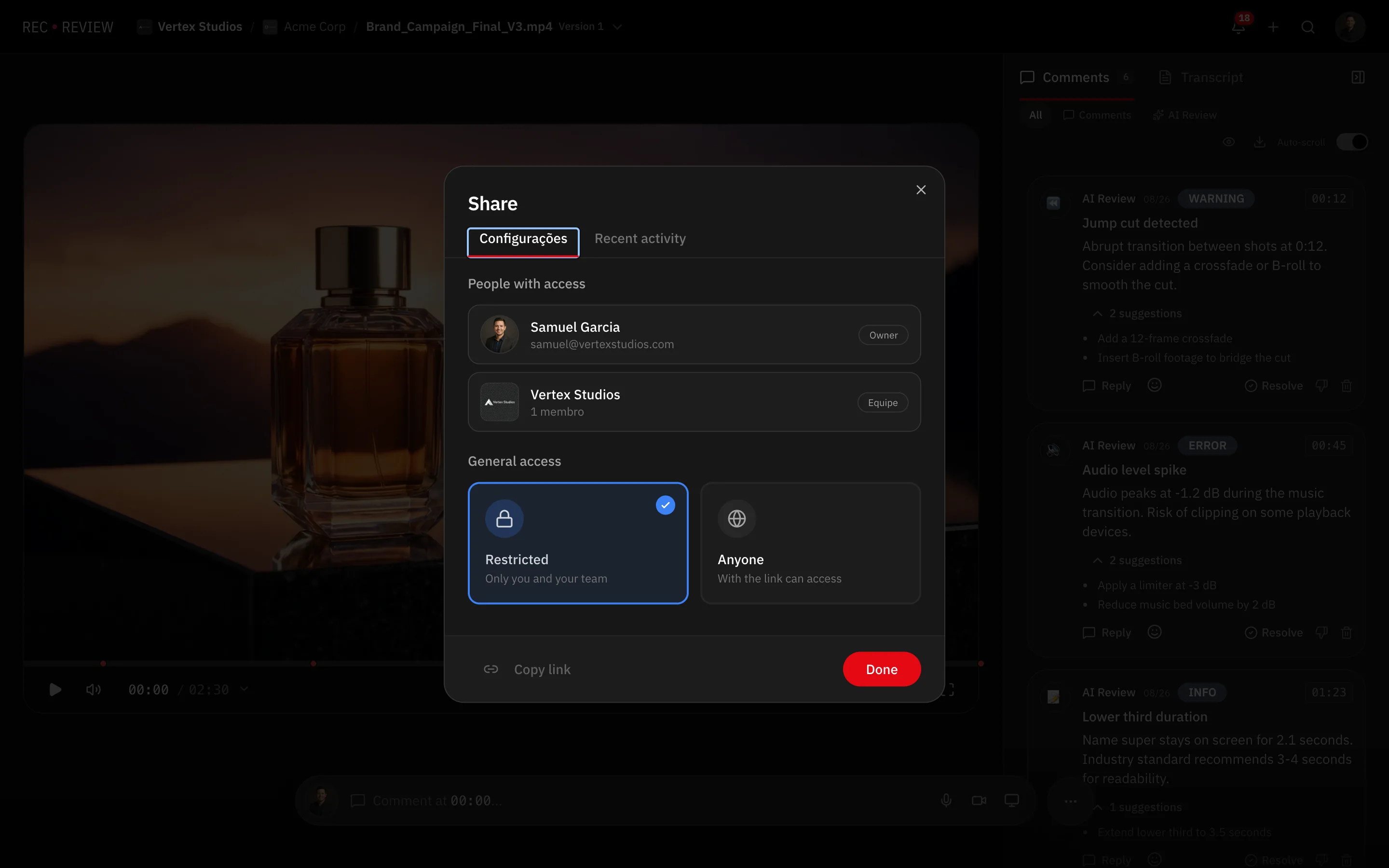
- On the review page, open the … actions menu and choose Share. The share dialog opens.
- Under General access, pick Anyone so the link works outside your team. Restricted keeps it to you and your team, and everyone else has to request access.
- Set the switches that appear below:
- Require identification — the visitor gives a name and email before the video plays, and can tick Remember this browser.
- Allow comments — without it the visitor can watch but not write.
- Show version history — whether older cuts appear next to the one you sent.
- Click Copy link and paste it wherever you are sending it.
Short link
The dialog also offers a Short link — a shorter address that redirects to the full one. Use it where the long URL gets mangled: WhatsApp, a printed brief, a phone call.
Replacing a link
Generate new link issues a fresh address and revokes the previous one, which is the way to cut off access to someone who should no longer have it. Everyone you already sent the old link to has to be sent the new one.
Warning: Require identification asks the visitor who they are; it does not check the answer, and it does not narrow down who may open the link. Treat it as a signature on the door, not a lock. For a client-by-client access list, use the client portal instead.
Who is watching
Recent activity in the same dialog lists the accesses recorded for that link, so you can tell whether the video was opened before the meeting.
What’s next
For a permanent, per-client space instead of a one-off link, see Client portal overview.