A preset is a bundle of ready-made automations you apply in one click, instead of writing each rule by hand. Start here when you are setting up a new workspace and don’t yet know which rules you want.
Before you begin
Only workspace admins and owners can apply presets.
Apply a preset
- Open the avatar menu in the top-right corner and click Workspace Settings.
- Go to Automations.
- Open the Add preset… dropdown.
- Pick the preset. Its rules appear in the list right away, active.
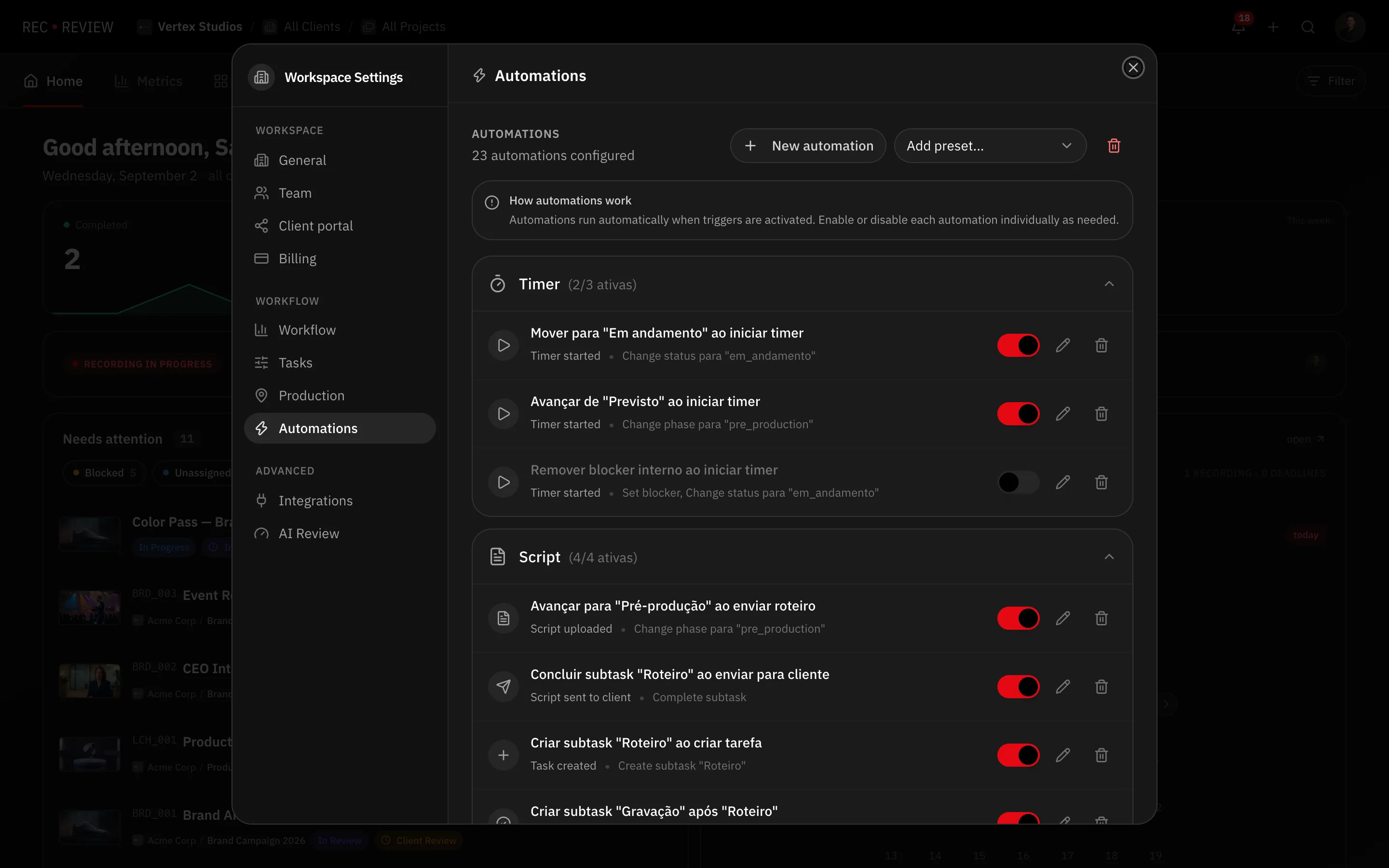
A preset adds its rules to what you already have — nothing is replaced. If you want a clean slate, use Delete all first.
Video Production
The largest preset, for studios running a full pipeline. It adds the timer rules, the complete review and blocker set, the deadline clock rules, script and production-plan rules, and a subtask chain that walks a task from creation to delivery: Script → Recording → Editing → Internal Review → Client Review → Final Delivery.
Along the way it sets the internal-review blocker when a video is uploaded, sets the client blocker and emails the client after internal review, and marks the task Delivered with the phase Finished once the final delivery subtask is complete.
Agency
For briefing-to-approval work. It uses the same review, blocker and deadline rules, plus a shorter chain: Briefing → Creation → Internal Approval → Client Approval. Only two timer rules, and no script or recording steps.
Simple
For small teams. Nothing creates subtasks. You get the two timer rules — move to In progress and leave the Planned phase when a timer starts — plus the review and blocker rules and the deadline clock.
No automations
Nothing is created. You build every rule yourself.
What the first three all include
- A client blocker moves the task to In review, marks it as needing review and shares the video with the client.
- Removing a blocker returns the task to To start.
- Client approval moves the task to Delivered and the phase to Finished. A request for changes sends it back to To start.
- The deadline clock pauses while a client blocker is active and resumes when it clears.
Note: Once applied, a preset’s rules are ordinary automations. Open any of them to change a status, swap a blocker or turn it off.
What’s next
Read how triggers, conditions and actions fit together before editing what a preset created — see How automations work.