Every task carries two dates. Due is what you promised the client. Internal deadline is your own date — the buffer before the promise comes due. Set both when a task has a real delivery date.
The internal date never reaches the client. It is hidden in the portal, in shared links and in delivery emails.
Set the dates
- Open the task. A panel opens on the right.
- In the Deadlines section, click Set date under Internal deadline and pick a date.
- Click Set date under Due and pick the client-facing date.
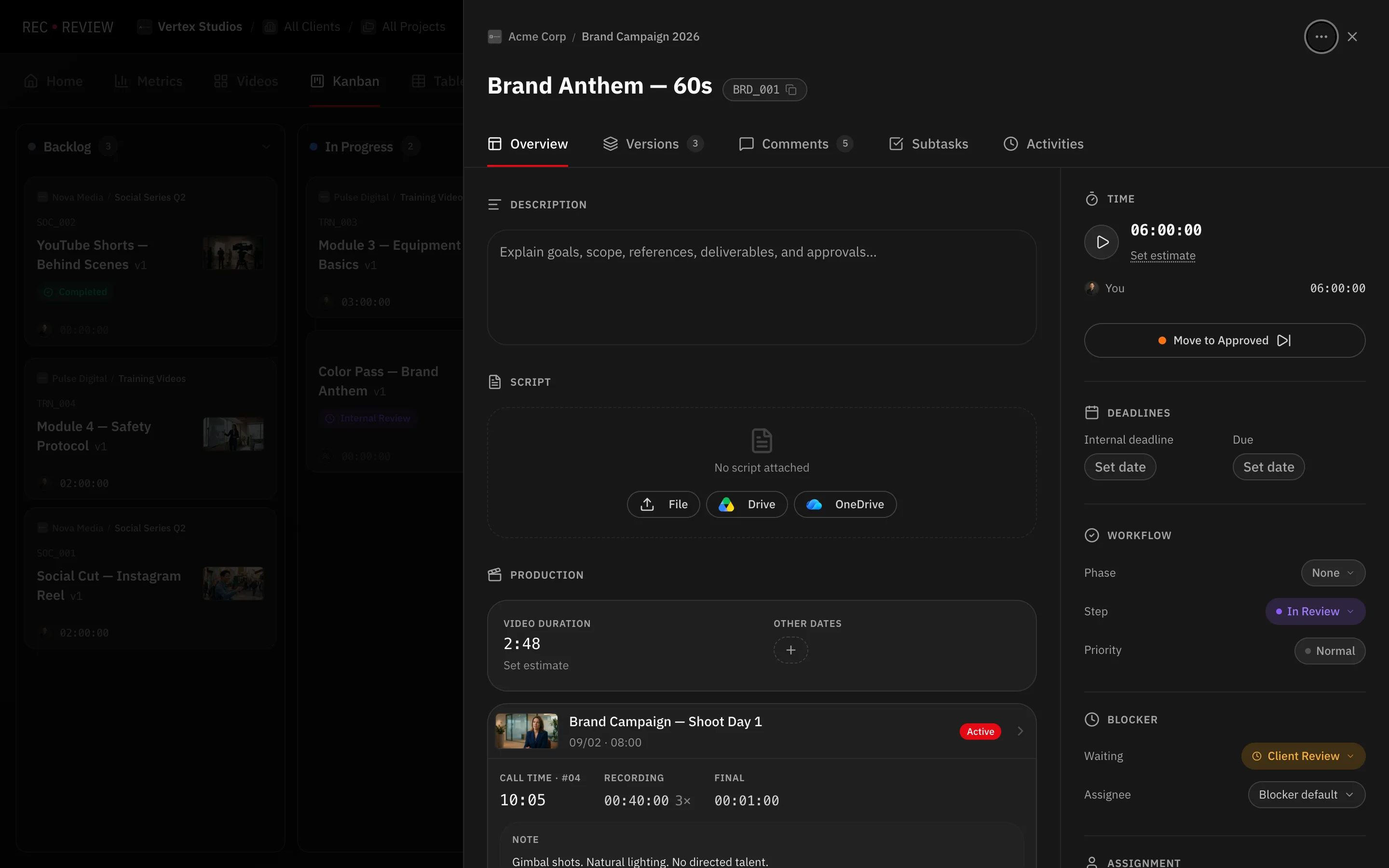
The internal deadline has to fall on or before the due date. RecReview rejects the other way round.
You can also set both when creating a task, apply them to a whole selection from the actions bar, or edit them straight in the Table view.
The clock pauses while the client has it
While a task carries a client blocker, the internal deadline clock stops. The days the client spends reviewing don’t eat your buffer. The badge reads Deadline paused, and the clock resumes when the blocker clears.
The Due date never shifts on its own. Only you can move it, by hand.
Read the projected delivery
When the client has enough review history, the panel adds a Projected delivery row. It combines the date your team should finish with how long that client usually takes to approve.
- A ~ in front means the estimate rests on thinner history.
- Amber means the projection lands after the promised date.
- Green means you still have buffer.
Note: A client with no review history gets no projection. RecReview shows nothing rather than a confident date built on no data.
Spot deadlines that are slipping
- Turn on Overdue under Show in the Filter panel to see only late tasks.
- Sort any view by Deadline or Internal deadline.
- The Home view surfaces tasks stuck with the client. Hovering the row reveals Send reminder and Dismiss; to renegotiate, open the task and change the date.
- Metrics → Deadline health shows the buffer split (Buffer ok, Buffer burning, Buffer gone) and how many tasks are With the client now.
What’s next
The pause and resume rules ship with every automation preset and are ordinary rules you can switch off — see How automations work.