An automation is one rule: when this trigger fires, and the optional conditions hold, run these actions. Write one whenever you catch yourself doing the same three clicks after every upload or every approval.
Before you begin
Automations are set per workspace, and only admins and owners can edit them.
Create an automation
- Open the avatar menu in the top-right corner and click Workspace Settings.
- Go to Automations. Your rules are listed by category, each with an on/off toggle.
- Click New automation.
- Give it a Name and, if you want, a Description.
- Pick the Trigger (when it runs).
- Add Conditions (optional) to restrict when it runs.
- Under Actions (what to do), click Add action and configure each one.
- Click Create. The rule appears in the list, active.
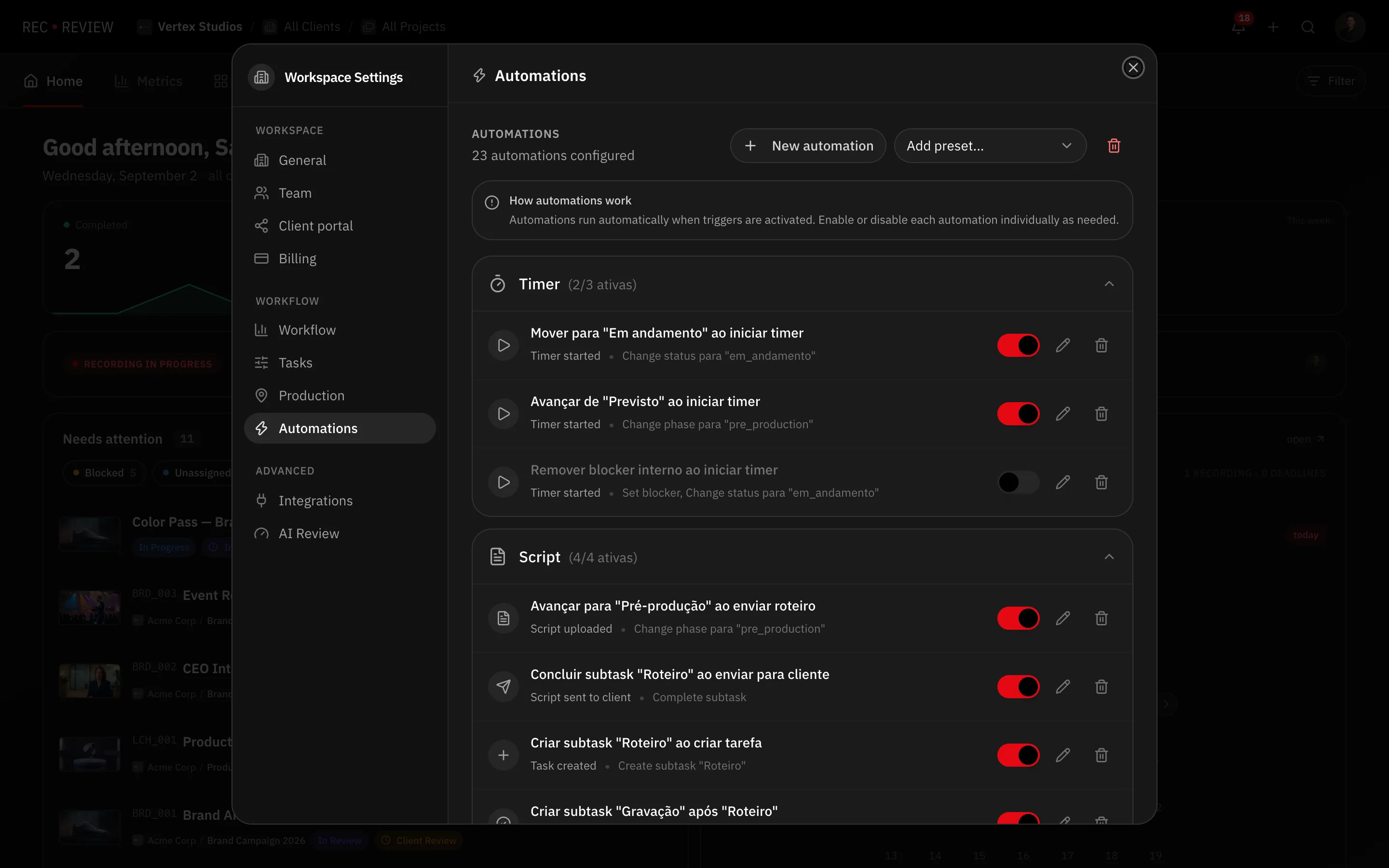
Every automation has an Active toggle, so you can turn a rule off without deleting it.
Triggers
Timer started, Timer stopped, Task created, Subtask completed, Video uploaded, Script uploaded, Script sent to client, Video added to plan, Video completed in plan, Status changed, Phase changed, Blocker added, Blocker removed, Comment added, Review status changed.
Some triggers take extra settings. A Blocker added rule can fire only for the client category or only for the internal one. A Subtask completed rule can watch one specific subtask title.
Actions
The editor offers ten: Change status, Change phase, Set blocker, Change review status, Create subtask, Complete subtask, Send email, Send notification, Trigger webhook and Enable video sharing.
Three more exist but are not in that list: Pause deadline, Resume deadline and Extend deadline. They arrive with the presets as ready-made rules, which you can switch off but not rebuild by hand.
One automation can run several actions in order. That is how the shipped rules move a task to In review, mark it as needing review and share the video in a single step.
Conditions
Conditions look at the task before acting: its current status or phase, whether it has a blocker and of which category, whether it has a due date, is overdue, or has an assignee.
Built-in behaviours
Above your rules sits a Built-in automations section. These are switches, not editable rules: Automatic review status, Move to in progress on timer start, Leave planned phase on timer start and Clear internal blocker on timer start.
Tip: Don’t build a workflow from zero. Apply a preset, then edit or disable the rules it creates.
What’s next
Compare the four presets and see which rules each one adds — see Choose an automation preset.