A task is one deliverable: its own status, phase, deadlines, comments and video versions. Create tasks before you have any footage — you can plan the whole month and attach the videos later.
Create one task
Everything you can create lives behind the + button in the header.
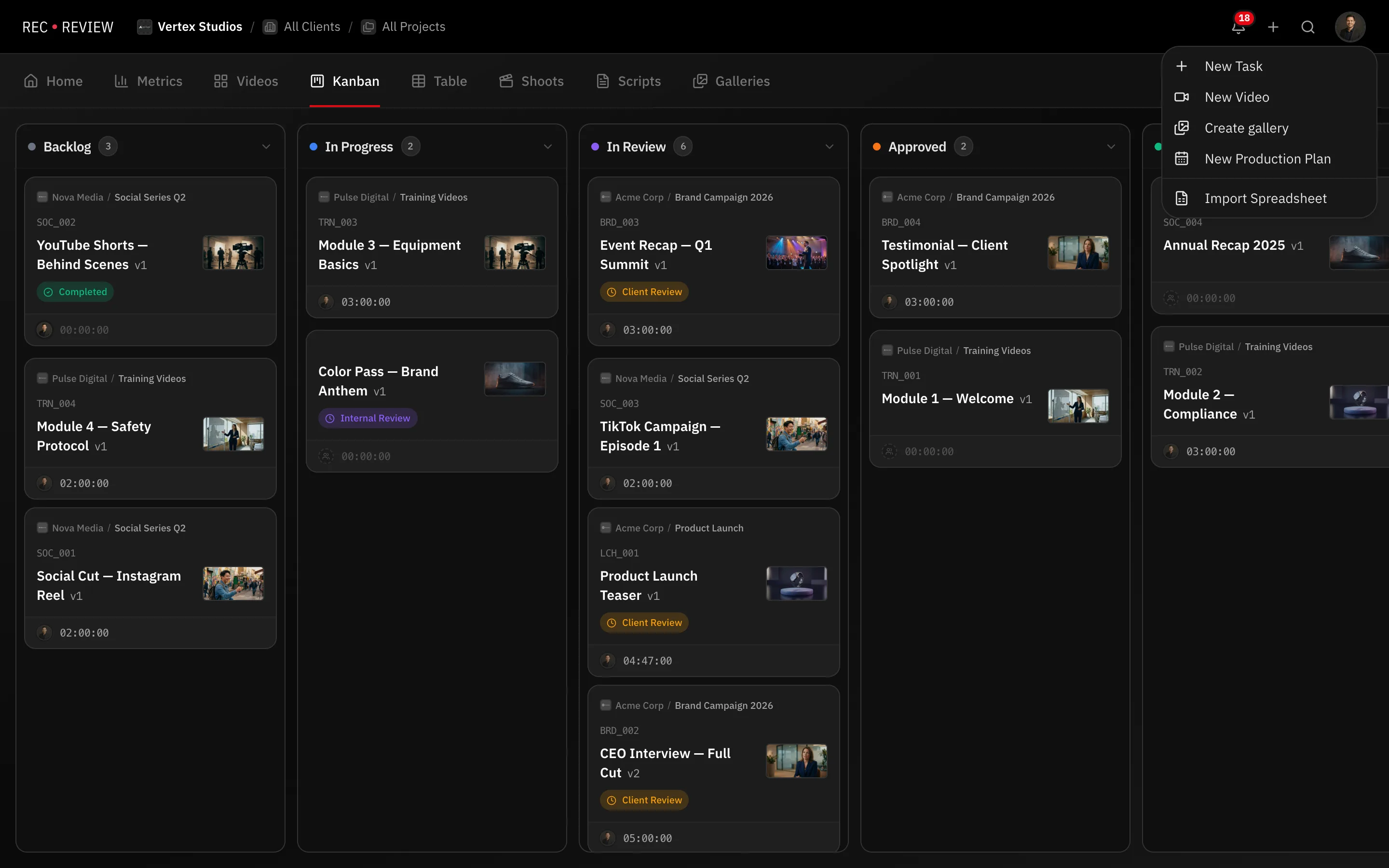
- Click + in the header and choose New Task. The task form opens.
- Type a Title. Everything else is optional.
- Under Organization, pick a Client and a Project.
- Under Planning, set the Assignee, Priority, Due date, Internal deadline and Estimated hours.
- Under Workflow, set the initial Phase, and a Blocker if the task already waits on someone.
- Click Create Task.
In the Table view you can also type into the New task… row at the bottom of a group. That creates a task with a title only.
The video code
A task gets a video code when it has a client and that client has an Internal Code. The code is the client code plus a sequential number, like ACME_001. Numbers run per client and are never reused.
The code shows on the card, in the table and in search. It is also what routes uploads: a file named ACME_001_v2.mov becomes a new version of that task instead of a duplicate.
Note: No client, or a client with no Internal Code, means no video code. The task still works — it just shows a title instead.
Create several tasks at once
- Open New Task and click Create several at once.
- Paste your list, one title per line. The limit is 100.
- Click Review. Each line becomes a row you can edit.
- Use Apply to all to set Client, Project, Assignees, Status, Phase, Waiting for, Delivery deadline and Internal deadline for every row in one go.
- Fix individual titles if needed, then click Create.
Every task created this way follows the same rules as a single one. Video codes and Task created automations apply to all of them.
What’s next
Open the task to add subtasks, or start the timer on it.