The dashboard shows the same tasks in different shapes: Home, Metrics, Videos, Kanban, Table, Shoots, Scripts and Galleries. Whatever you filter or sort follows you from one tab to the next.
Narrow the list
- Click Filter in the toolbar. The panel opens on the right.
- Pick values under Status, Phase, Waiting and Responsible.
- Under Show, use the switches: Tasks with video, Tasks without video and Overdue.
- Under Video upload, limit results by when the video came in: Any time, Last 24 hours, Last 7 days, Last 30 days or Last 90 days.
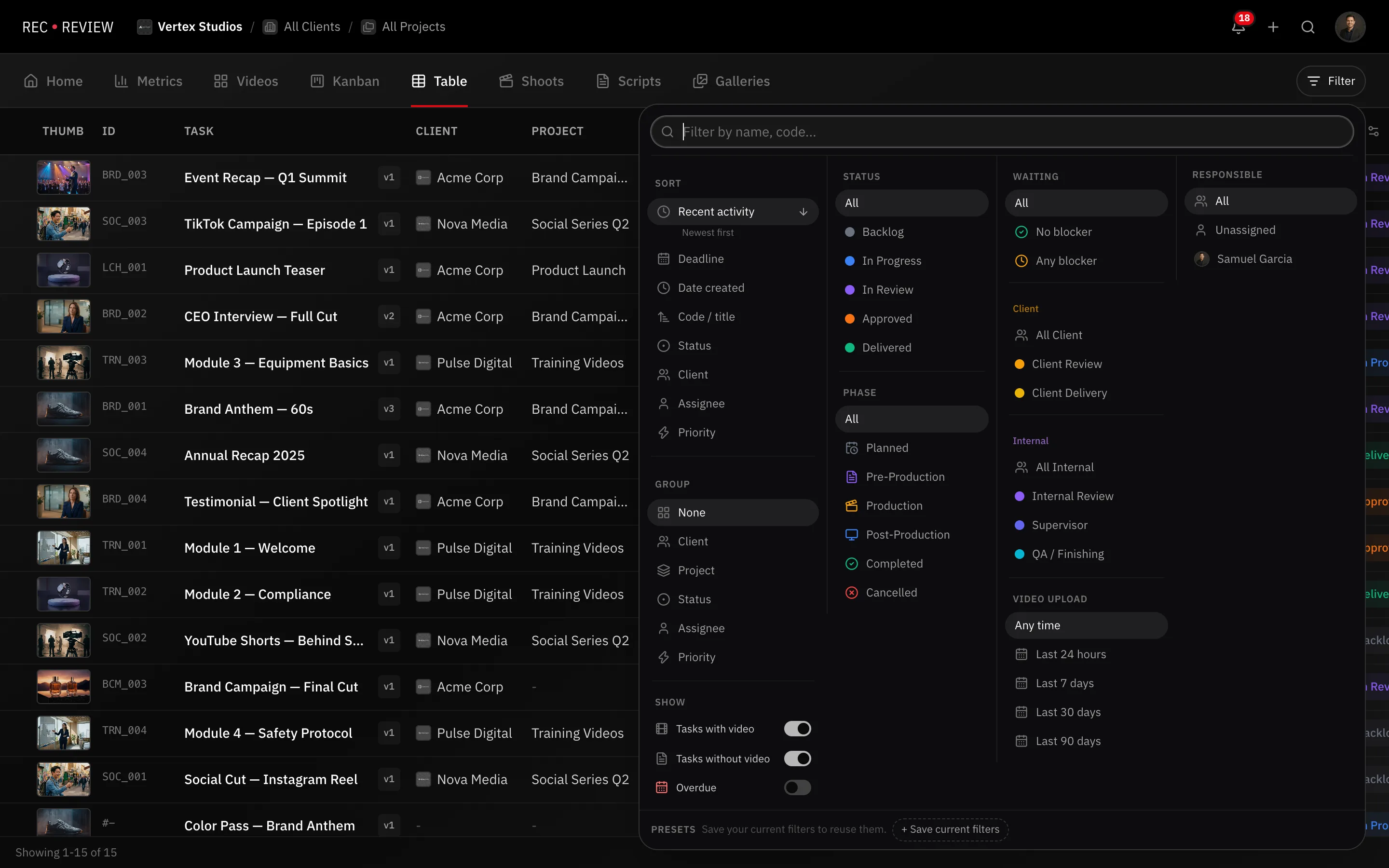
Everything you pick appears as a chip under Active filters. Click a chip’s x to drop it, or Clear all filters to reset. The client and project dropdowns in the header filter alongside the panel, and the search box narrows by title or video code.
Sort
Under Sort, choose the ordering: Recent activity, Deadline, Date created, Code / title, Status, Client, Assignee or Priority. Click it again to flip the direction — each ordering names its own pair, like Soonest first and Furthest first for deadlines.
The Delivered and cancelled go last switch keeps closed work out of the way.
In the Table view you can also click a column header to sort by it, including columns the menu doesn’t list, such as Internal deadline, Number, Project and Phase.
Group
The Group section changes shape per view:
- Kanban — Columns by Status, Project Phase or Waiting, plus Swimlanes by Assignee or Priority.
- Table — group rows by client, project, status, Assignee or Priority.
- Videos — group the grid by status.
Save a filter as a preset
- Set up the filters, sorting and grouping you want.
- At the bottom of the Filter panel, click Save current filters.
- Type a Preset name.
- Tick Include current client/project if the preset should also pin the current client and project.
- Press Enter. The preset appears as a chip at the bottom of the panel.
Click a chip to apply it, or its x to delete it. Presets are personal: each member keeps their own set per workspace.
Tip: Your last filter, sort and grouping are remembered per workspace, so you land back where you left off.
What’s next
For a one-off lookup across everything — including what was said inside a video — use global search instead.